
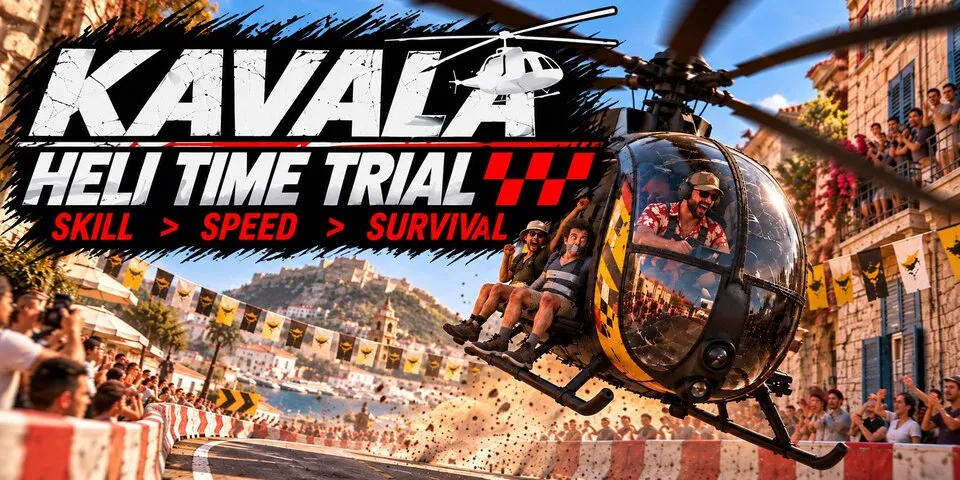
The accepted story is that the Kavala Heli Time Trial began in a harbour-side bar, during an argument about who was the best helicopter pilot on Altis. The argument moved on to who could fly lowest, who could fly fastest, and who had once passed between two apartment buildings with the least remaining paint. When somebody pointed out that flying over Kavala hardly proved anything, the answer was immediate: the route would go through Kavala. Below the rooftops.
This mission is a low-level agility trainer disguised as a race. It is designed to build the judgement, precision, and fast control corrections needed in cramped environments: reading the next turn early, placing the helicopter exactly where you want it, managing speed through narrow streets, and staying low without discovering which parts of the city are load-bearing.
This is not for beginners. If you are new to Arma helicopter flight, start with Chisel’s LZ Trainer. Use Free Flight mode and learn to control, turn, descend, and land without wrestling the aircraft. Come back when low-level flying feels deliberate rather than desperate. Kavala will be waiting, along with the spectators, the course marshals, and whatever remains of the last pilot’s paintwork.
1. Installation and first run
Subscribing on Steam Workshop
Subscribe to the mission on the Steam Workshop and let Arma 3 finish downloading it. The scenario is a mission, not a mod, so it does not need to be enabled in the Arma 3 mod list.
 Subscribe to the mission on Steam Workshop.
Loading the mission
From the Arma 3 main menu, open Single Player → Scenarios and select Kavala Heli Time Trial. Read the briefing, then continue into the mission.
The mission opens its race dialog rather than dropping you directly into a running attempt. Choose a route and helicopter, review the options if needed, and select Start Race.
The main race dialog
The main race dialog is where you choose what you are going to fly. It contains the route selector, the helicopter selector, the Start Race button, and the controls for returning to the briefing or opening options.
- Route selects one of the preset routes or a Random Route. The preset routes are ordered by difficulty; the random entry generates a new course for the current session. Random routes tend to be on the difficult side. They are intended to provide an extra challenge when the pre built missions get a little too easy for you.
- Helicopter lists the aircraft available in your Arma installation, including vanilla Arma, DLC, and mod aircraft. The routes are designed around the MH-9 Hummingbird, so use it first if you are learning the mission. Larger helicopters will definitely find the routes challenging. Very large helicopters…. impossible.
- Replay View chooses the view for Watch Replay after a run. It does not change how the next race is flown.
- Start Race applies the selected route, helicopter, and current race settings, places you in front of the start arch, and begins the race.
- Watch Replay Starts the replay of your last race in the selected replay view. Or if you just loaded a save, it will play the replay of that save. This will not be available until you have completed a race attempt, or just loaded a saved replay.
- Save Replay This will save your last race, so you can load and review it in the future. Saves are stored in your arma profile, in order to prevent your profile from becoming too large it is limited to 20 saves. After that if you want to save a run, you need to delete one first.
- Replay Options Various optionsn that decide what is and is not visible during a replay.
- Options opens the separate settings dialog described below. It changes race conditions and presentation; it does not select the route or helicopter.
The left side of the dialog is the run-summary area. Before your first attempt it has no result to show. After a run it reports the result, time breakdown, penalties or bonuses, best-time comparison, and any non-default settings that affect difficulty.
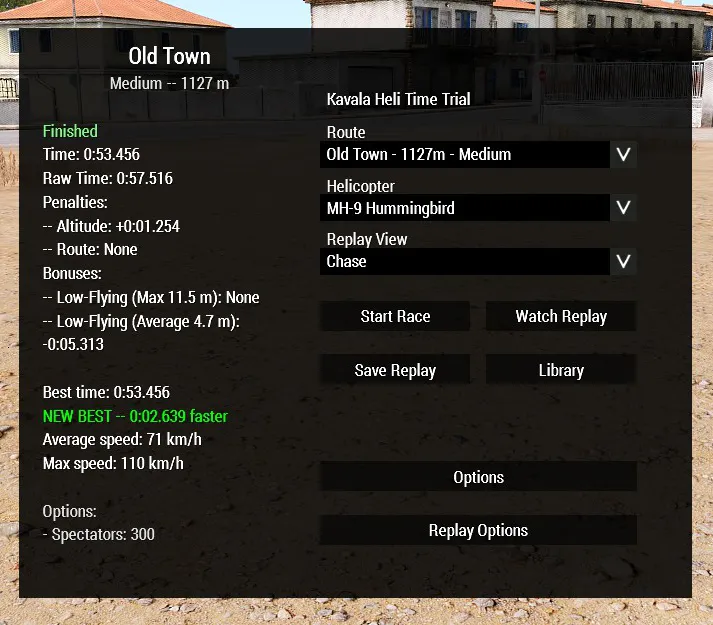 The main dialog is the starting point for choosing a route, selecting a helicopter, launching a run, and opening the replay or options screens.
For your first run, I recommend you use the default MH-9 Hummingbird. It is the helicopter the routes were designed around and gives you the clearance and responsiveness the course expects.
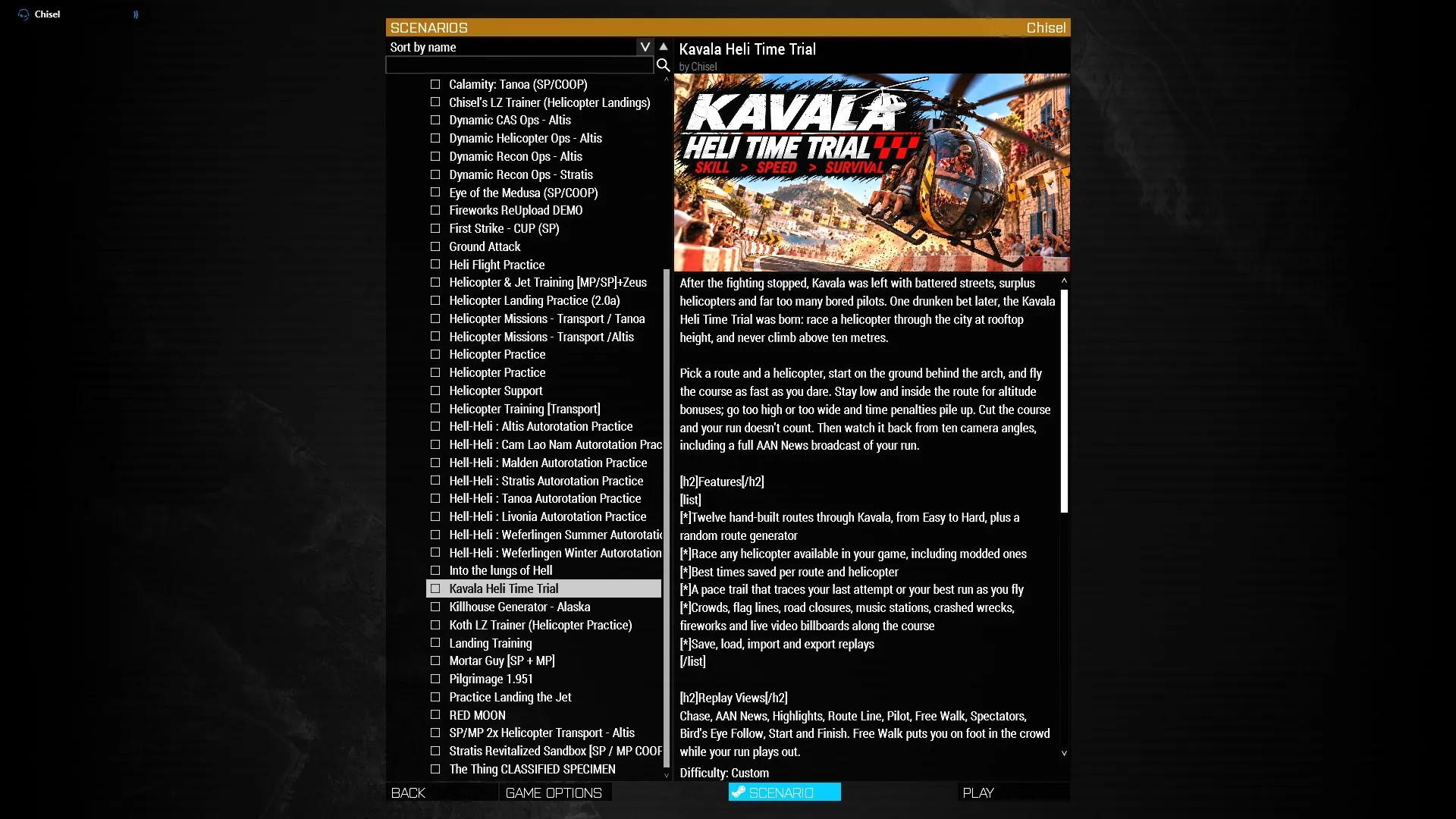 Select the mission from the Arma 3 scenario screen before entering the course.
What happens at the start
You begin on the ground with the green start arch right in front of you. The engine off. Take off, then fly through the arch to start the clock. The timer starts when you cross the start line, not when the engine starts. The route is marked out with either floating green orbs, or red spray painted arrows on the ground depending on your options. Particularly sharp turns have a turn warning. Either a floating yellow arrow, or a large sign with a red arrow (this can be disabled if you want an extra challenge).
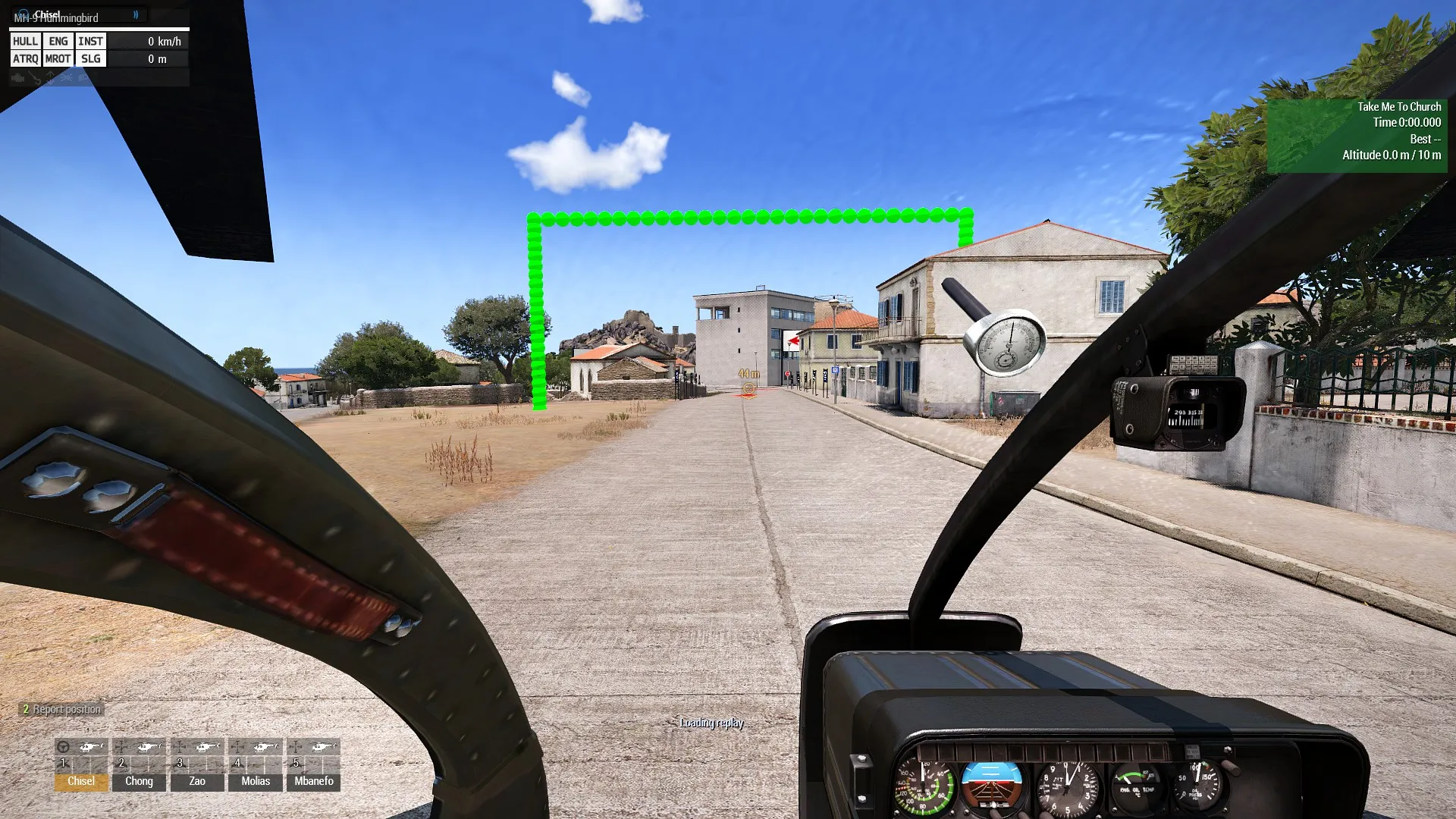 The green start arch viewed from the pilot’s starting position.
The in-race overlay
During an attempt, the race status overlay in the top-right corner gives you a compact readout of the current run. It is there to confirm the conditions and warn you about scoring problems; it is not a replacement for the route markers, GPS, or looking where you are flying.
- Route name identifies the course currently loaded.
- Time is the elapsed timed-section time. It starts when you cross the start arch and stops when you cross the finish arch. Time before the start line is not part of the scored section.
- Best shows the best comparable time currently recorded for that route. If you have Invincible enabled, you will get a result, but it not count as a best-time.
- Altitude shows your terrain-relative altitude alongside the 10 m ceiling. The altitude text itself remains white; the overlay’s background is a colour-coded indicator. It is calm green up to 5 m, blends from green toward orange between 5 m and 7.5 m, stays orange from 7.5 m to 10 m, and becomes bright red above the ceiling. Once it is bright red, you are recieving a time penalty.
- Penalty warning is not a numeric field in this overlay. When you are above the altitude limit, outside the route corridor, or both, a separate flashing warning banner appears—OVER ALTITUDE LIMIT, OUT OF BOUNDS, or OVER ALTITUDE LIMIT + OUT OF BOUNDS—while the penalty accrues. The exact penalty and any bonus are reported in the run summary after the attempt.
Use the overlay as a quick glance on an open stretch. If you need to study the route direction, use the GPS during the flight and the full map before take-off. The overlay tells you how the run is scoring, not where the next turn is.
 During a run, this overlay shows the route, timing and altitude. The background colour allows you to determine how you are doing on altitude at a glance..
2. Controls reference
Arma 3 helicopter flight controls
These are the default Arma 3 rotary-wing bindings. If you have remapped them, use your own bindings.
| Control | Default input |
|---|---|
| Cyclic forward / aft | W / S |
| Cyclic left / right | A / D |
| Rudder left / right | Q / E |
| Collective raise / lower | Left Shift / Z |
| Landing gear | G |
| Auto-hover toggle | X when using Advanced Flight Model |
| End the current attempt | End |
Replay controls
Press J during a replay to show the replay control reference. The main controls are:
| Control | Action |
|---|---|
Space |
Pause / resume playback |
← / → |
Rewind / fast-forward 5 seconds |
Shift + ← / → |
Rewind / fast-forward 1 second |
F / Shift + F |
Next / previous replay view |
Backspace |
Exit replay; press again to confirm if prompted |
C |
Toggle cinematic mode |
J |
Show / hide replay controls |
K |
Show / hide flight-controls overlay |
V |
Show / hide keystroke visualiser |
P |
Show / hide Pace Trail during replay |
G |
Show / hide race route markers during replay |
N |
Toggle night vision |
R |
Reset camera adjustments |
Some views or controls are unavailable in particular camera modes. F switches from view to view. Pilot and Free walk cannot be switched to with the F key, and cannot be switched out of with the F key. Cinematic mode turns all game hud elements off, its designed for those who want to screen record a somewhat cinematic view of their race. You can still chose to turn on and off individual elements using the controls above after entering cinematic mode.
Flight-controls overlay
The flight-controls overlay shows what the recorded pilot was doing, rather than trying to infer control inputs from the helicopter’s movement. It is useful when reviewing a replay to see exactly what you did when things went wrong (or right). Or to study exactly what another pilot was doing if they share a save with you.
| Element | What it shows |
|---|---|
| Cyclic | A two-axis stick display showing forward/aft and left/right cyclic input. |
| Collective | Collective position and percentage. |
| Pedals | Anti-torque pedal input and its direction. |
| Artificial horizon | Pitch and bank, with a degree reference. |
| Keystroke visualiser | The recorded keyboard inputs, with pressed keys lighting up as they occurred. |
During replay, press K to show or hide the flight-controls overlay. Press V to show or hide the keystroke visualiser independently. Press J if you need to bring back the replay control reference. The overlay follows replay time, so pausing, rewinding, and fast-forwarding changes the displayed inputs to match the selected moment.
The same flight-controls display can be enabled live from the race Options panel with Show Flight Controls. Live display and replay display are separate uses of the same information: the live version helps you understand your current technique, while the replay version lets you inspect a completed line without having to fly it again. The overlay can be repositioned from the replay options when that control is available.
The overlay is especially useful when paired with the cameras: use Pilot to see what was visible, Chase to see the aircraft’s response, and the controls overlay to identify the input that produced it. In Advanced Flight Model, the collective behaviour is represented according to the aircraft’s actual analogue simulation rather than as a simple on/off control.
If you like the flight control overlay, its available as a seperate mod called CHS Flight HUD that can be used with any mission.
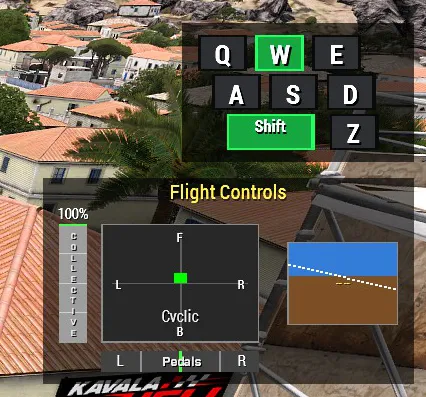 The flight-controls overlay visualises the recorded cyclic, collective, pedal, attitude, and keyboard inputs.
Freewalk replay controls
Freewalk uses its own protected key combinations rather than the single-key controls above. As you need to be able to use normal arma controls and keybinding to move around.
| Control | Freewalk action |
|---|---|
Ctrl + Alt + C |
Toggle cinematic mode |
Ctrl + Alt + J |
Show / hide the Freewalk controls overlay |
Ctrl + Alt + K |
Show / hide flight controls |
Ctrl + Alt + Left / Right |
Rewind / fast-forward 5 seconds |
Ctrl + Alt + Shift + Left / Right |
Rewind / fast-forward 1 second |
Backspace |
Exit Freewalk; press again to confirm if prompted |
Freewalk does not use the ordinary J, K, C, or unmodified arrow-key shortcuts for these actions.
Camera movement by replay view
If you want to be able to watch part of your replay from just the right angle, you can control camera position completely with the controls below. The camera movement keys change meaning slightly depending on the view:
| Input | Action |
|---|---|
A / D |
Orbit left / right |
W / S |
Vertical orbit in Chase view; raise / lower in other views |
Q / E |
Zoom in / out |
Z / X |
Move in / out |
Alt + mouse |
Freelook from the current camera position |
R |
Reset the current view’s camera adjustments |
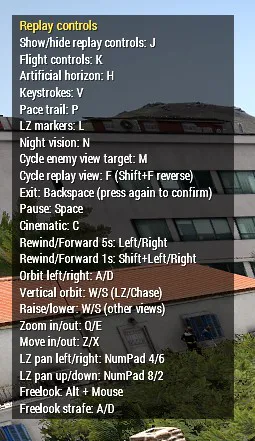 The replay-controls reference shows the keys used to change views, seek through the recording, and control playback.
3. How a race works
Starting a run
- Choose a route in the race dialog.
- Choose a helicopter.
- Configure optional settings such as time of day, weather, wind, route markers, Pace Trail, and invincibility.
- Select Start Race.
- Take off.
- Fly through the green start arch to begin the timed section.
- Follow the route markers
- Fly through the finish arch
The hand-built routes have different lengths and difficulties. Random Route generates a fresh course through Kavala.
Choosing a helicopter
You can select any helicopter available in your installation, including vanilla Arma aircraft, DLC aircraft, and helicopters added by mods. That does not mean every helicopter is equally suited to the course. The routes were designed around the MH-9 Hummingbird: its small size, responsive handling, and roughly 8.5-metre rotor span are part of the assumptions behind the narrow streets and low-level turns.
Larger helicopters may be selectable and may complete some routes, but they have less clearance and are not guaranteed to fit through every section as intended. In fact, I gaurantee they will not fit through a lot of sections. If you want to experience the routes the way they were designed, start with the MH-9. Choosing something larger is up to you, but any arguments with buildings, signs, or municipal infrastructure are between you and your insurance company.
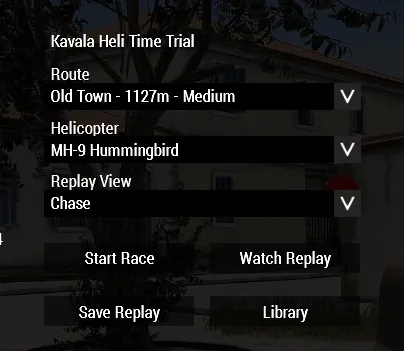 Before starting, the race dialog lets you select the route and helicopter.
Mod compatibility
The mission is designed to work with a normal Arma 3 installation as well as installations containing DLC and helicopter mods. It does not require a separate mod to provide the race, routes, scoring, or replay library. Any compatible helicopter class that Arma exposes to the mission can appear in the main-dialog helicopter selector, but the route geometry and the 10-metre challenge are tuned for the MH-9 Hummingbird.
- ACE is optional. If ACE is loaded, Earplugs at Start can apply ACE earplugs automatically at the beginning of an attempt. Without ACE, that setting has no effect; it does not prevent the mission from running.
- Advanced Flight Model is supported. The mission records the aircraft state and controls reported by Arma, so AFM runs can be replayed. The control overlay may look different because AFM uses analogue collective behaviour.
- CHS Replay Camera is optional. When it is installed and active during recording, Pilot replay can preserve freelook and zoom, including TrackIR-style head-tracking movement. Turn live TrackIR or other head tracking off while watching that replay so it does not override the recorded view. See the CHS Replay Camera Workshop page.
- Crash and visual-effect cleanup is deliberately defensive. After a crash, and again before the next attempt, the mission resets vanilla camera and blur effects, ACE hearing state, and supported Suppress effects. It repeats the post-processing reset briefly to catch delayed mod callbacks, rather than allowing a crash to leave a permanent blur or muffled-audio state.
- KAT — Advanced Medical is not a hard dependency, and the mission does not patch KAT’s internals. KAT’s eye-injury or blur effect can be retriggered by several near-simultaneous crash events; the mission clears the resulting post-processing effects after a crash and at the next attempt boundary, including delayed callbacks. If a blur still persists, temporarily disable KAT when reporting the issue so it can be separated from mission cleanup.
- Blastcore/BLSC and crash debris are handled by crash-artifact cleanup. The mission identifies transient wreck, debris, smoke, fire, crater, and BLSC objects near the crash and removes or hides them before the next attempt, while protecting authored map scenery and mission-owned route objects. It also deletes dead replay-source vehicles and restores the pre-run environment snapshot, so crash wreckage and knocked-over objects do not accumulate between attempts or contaminate replays.
- Cinematic replay HUD: when detected, DUI compass and HATG UI are temporarily hidden for cinematic replay and their previous settings are restored afterward. Other third-party overlays may not be suppressible by the mission and can remain visible. If you regularly use a mod that is not hidden by cinematic view, let me know and I’ll do my best to support it.
- Other aircraft and gameplay mods may change handling, view behavior, damage, or available controls. Those changes are outside the mission’s scoring assumptions, so use the MH-9 and default conditions when you want a clean comparison with published best times.
The Rules
- Follow the route markers to the checkered finish arch.
- Stay at or below 10 metres above the terrain.
- Stay inside the marked route corridor.
- Crossing outside the altitude or route limits adds a time penalty for as long as you remain out of bounds.
- Flying low can earn an altitude bonus.
- Do not cut out a section of the course. Cutting the inside of a tight corner is allowed; skipping a loop of road is not and fails the run.
- Cross the finish arch to stop the clock.
- Landing during a run is allowed.
- Press
Endif you need to end the attempt early.
The mission does not require you to remain airborne. A landing is a valid part of a run unless the helicopter is destroyed, disabled, or the route is failed for another reason. The mission will detect if a helicopter has been so badly damaged that it will not be able to become airborne again, and will end the run automatically after a few seconds.
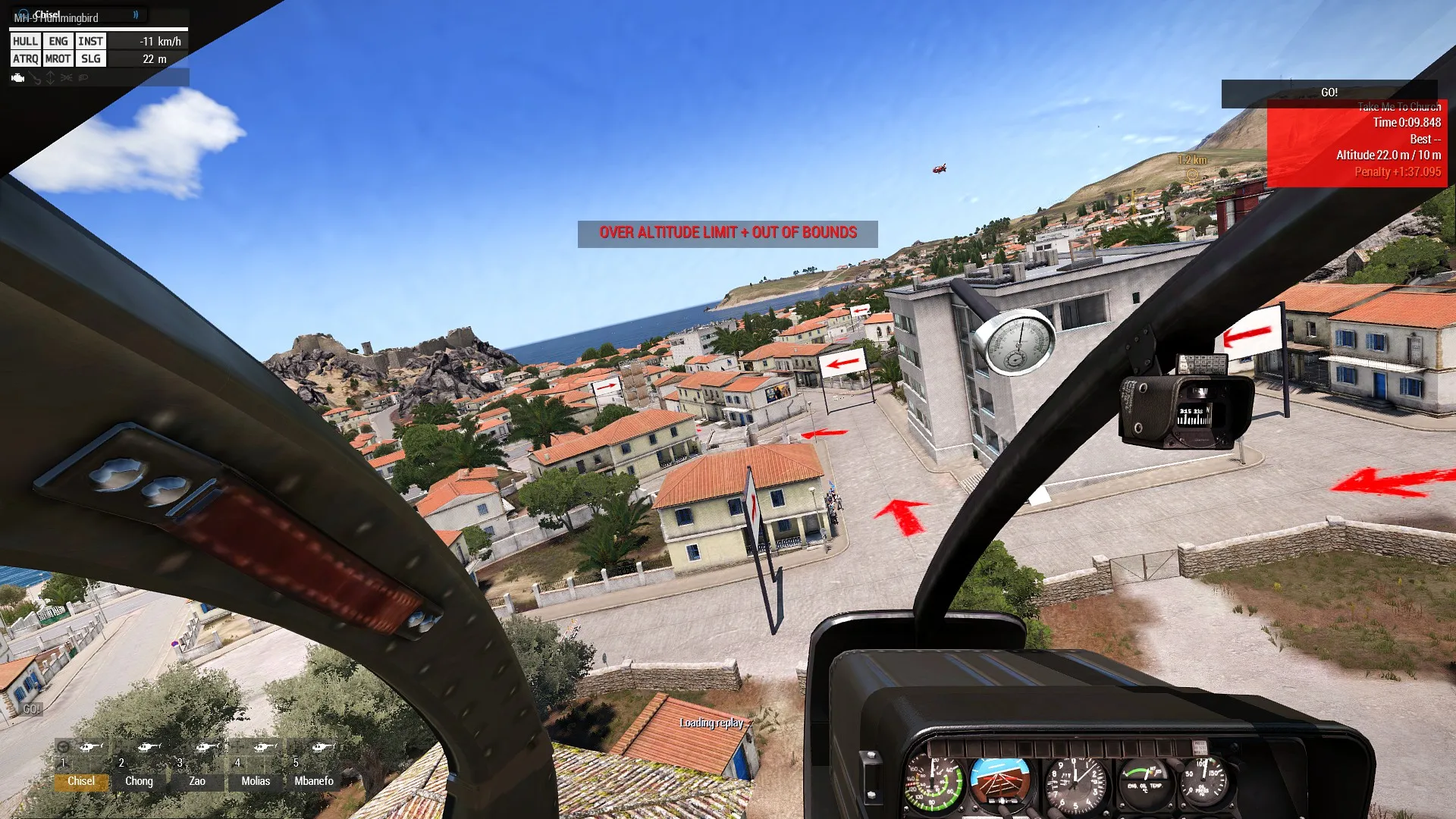 Altitude and out of bounds warnings.
Finishing a run
Cross the checkered finish arch. The clock stops and the run summary shows your result, time, penalties, bonuses, and best-time comparison. From the summary you can try again, watch the replay, or save the run.
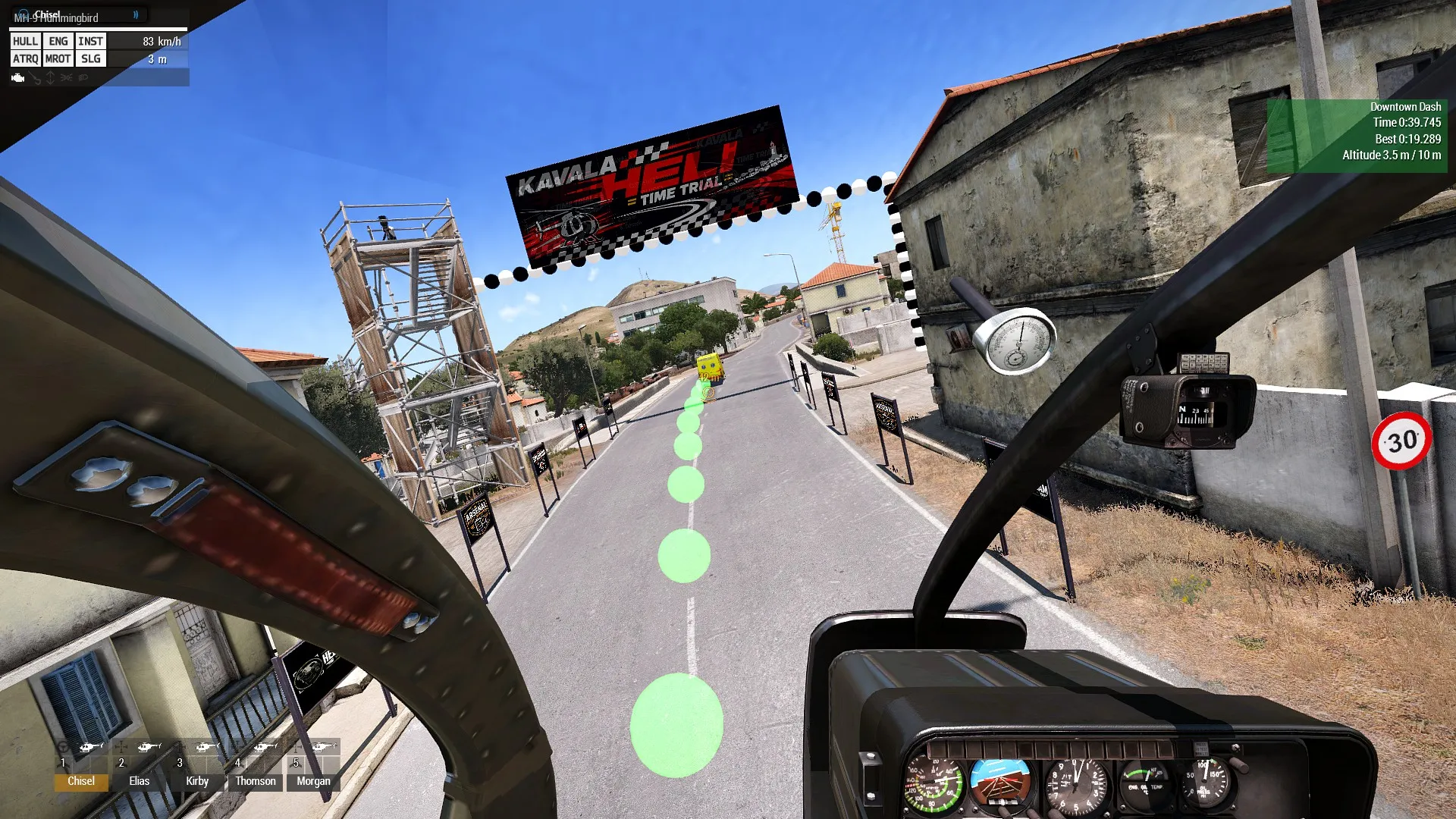 The finish arch marks the end of the timed route; follow the markers and fly through it to finish.
4. The routes
The route selector orders the hand-built routes by difficulty. Difficulty is a guide, not a promise: a route that suits your helicopter and flying style may not suit somebody else’s. The current routes are:
Milk Run — Easy
The gentlest introduction to the Kavala Heli Time Trial—and a classic trap for anyone who mistakes “easy” for “safe.” The course is long, fast and relatively straight, so it is tempting to let the Hummingbird run. Resist that urge: speed builds quickly at rooftop height, and the route has plenty of solid reasons to remind you that concrete always wins. Smooth hands and a steady altitude will get you home faster than a spectacular recovery.
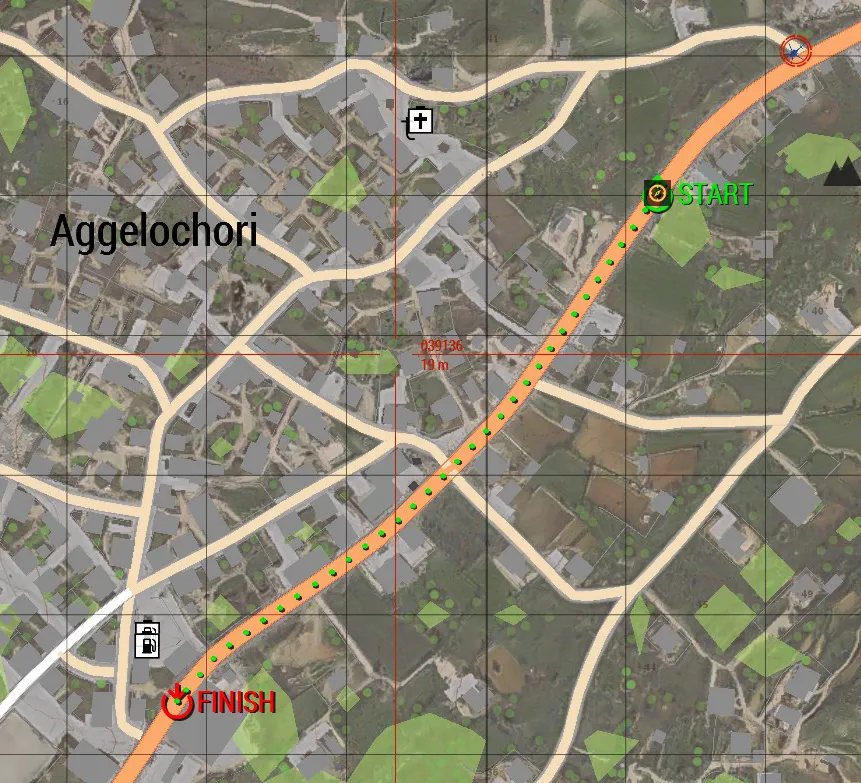 Milk Run Route
Downtown Dash — Easy
A short, sharp run straight through the heart of Kavala. On the map it looks almost suspiciously simple. In the cockpit, the central change of direction arrives considerably sooner than expected and leaves very little room for negotiation. Read the streets early, keep the Hummingbird low and be willing to sacrifice a little straight-line speed for a clean turn. A wide approach here tends to end with somebody from Bunker & Sons taking measurements. Downtown Dash is over quickly. So are most mistakes.
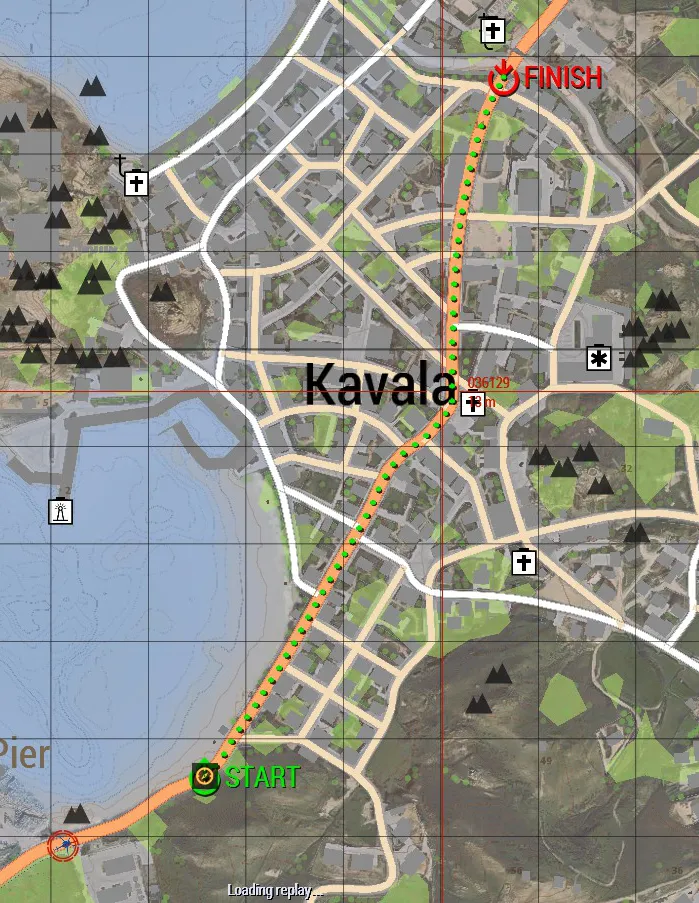 Downtown Dash Route
The River — Easy
Leave the hills outside Kavala and follow the river back toward the city. The open valley makes this one of the friendlier routes in the series, particularly for pilots still learning to stay low without treating every contour change as a personal challenge. Let the river guide you, anticipate the bends and keep the helicopter settled rather than chasing every rise and dip in the terrain. There is something deeply satisfying about skimming the river all the way home. There is considerably less satisfaction in discovering how solid the bridges are.
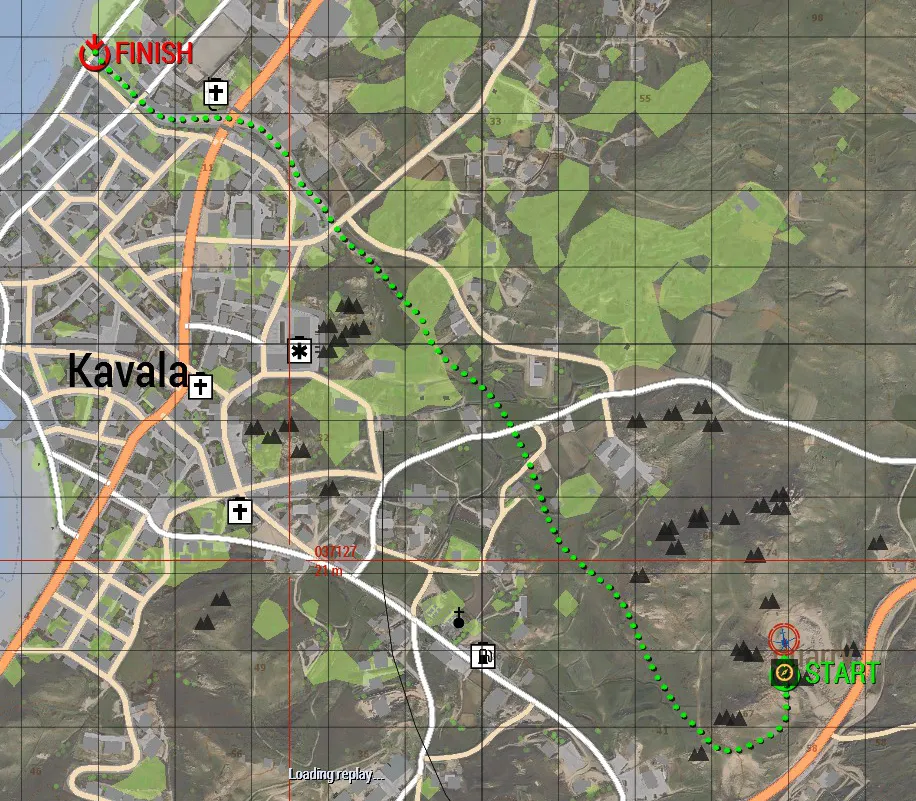 The River Route
Old Town — Medium
Many seasoned pilots consider Old Town the first proper Kavala course. It begins where Downtown Dash leaves off and winds deeper into the older streets toward Plateia, where the buildings crowd closer, the turns arrive faster and every correction seems to cost twice as much. Pick your line before entering each bend. Keep the nose moving smoothly and avoid the temptation to force speed through a gap simply because somebody else once claimed they made it. Old Town rewards precision. Bravado is usually collected afterward with a broom.
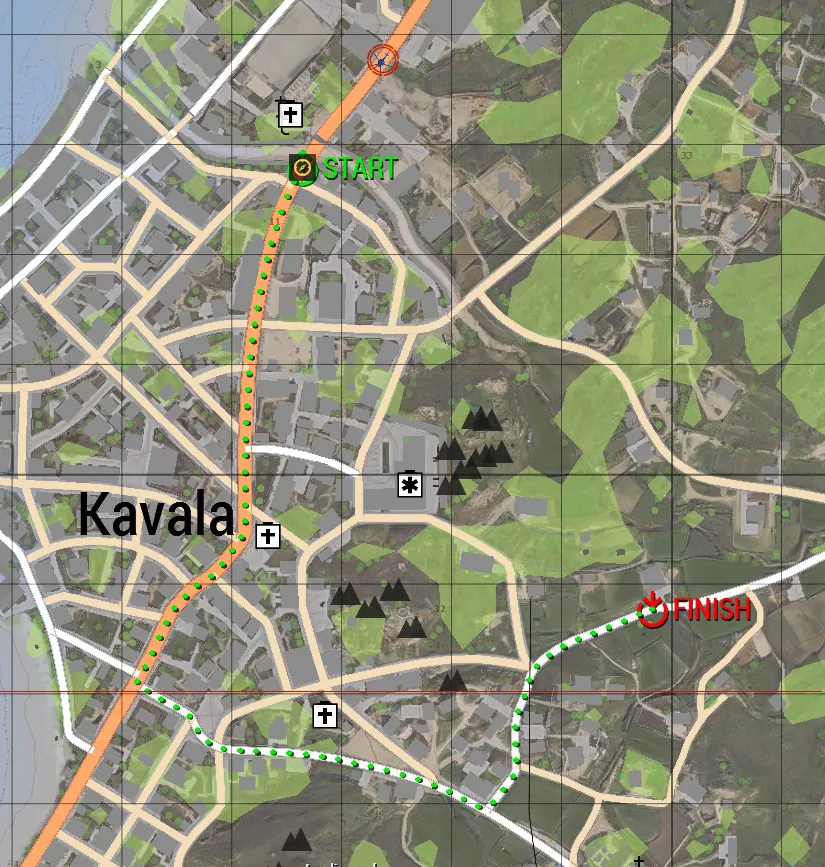 Old Town Route
Coastal Cruise — Medium
Kavala waterfront. Beaches. The pier. Blue water. Mediterranean sunshine. Try to enjoy it while you can. The broad coastal stretches invite speed and can lull a pilot into believing this really is the “cruise” advertised on the sign. Then the route turns inland through the back streets beneath Kastro Fortress. Carry enough speed to stay competitive, but leave yourself room to make the inland corners cleanly. The view is spectacular. So is the repair bill if you stare at it too long.
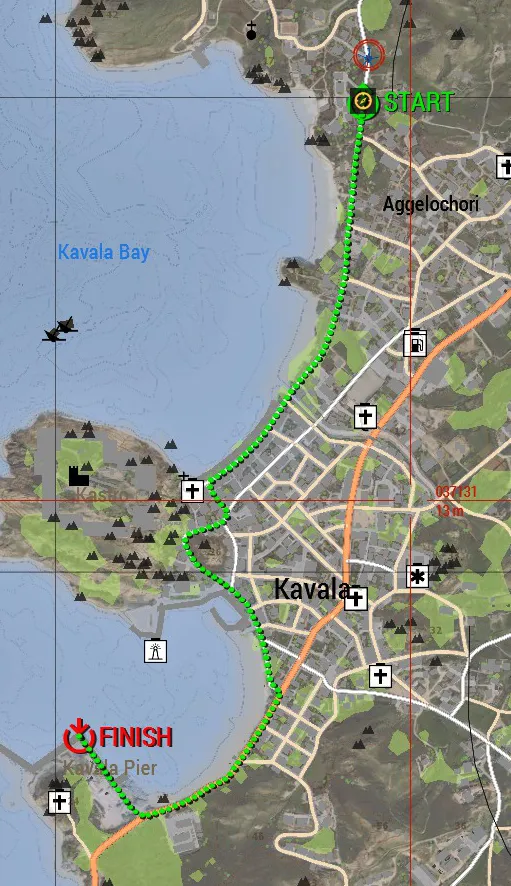 Coastal Cruise Route
The Switchback — Medium
The Switchback begins peacefully enough along the harbour. This is misdirection. Before long, the route starts folding back across Kavala and asking increasingly personal questions about your cyclic technique, pedal work and ability to recognize a bad idea before committing fully to it. Late braking gets expensive here. So does forcing the nose around after the helicopter has already decided where it wants to go. Stay coordinated, plan the reversals early and carry your speed through the corners rather than into the nearest wall. Straight-line heroes tend to have a difficult afternoon.
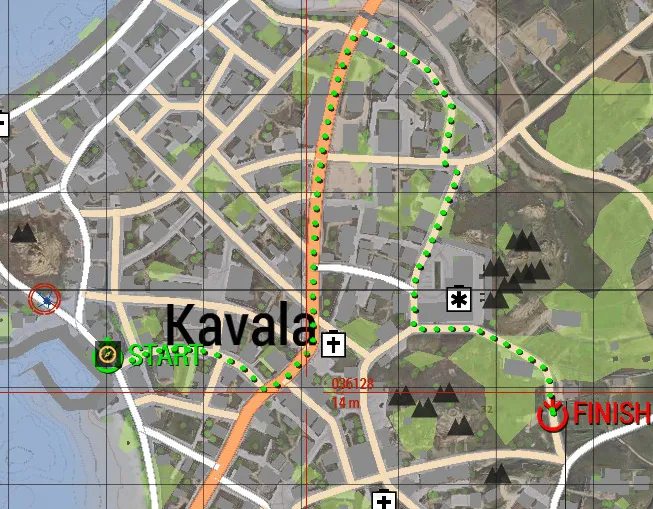 The Switchback Route
The Alley Slalom — Hard
Where it all began. The Alley Slalom follows the original Kavala Time Trial route and remains a favourite among veteran pilots who remember a simpler, more civilised age when the organisers had only just begun leaving burning helicopters on the course. It threads through tight streets and rapid transitions, demanding accurate placement more than outright speed. The gaps are narrow, the corrections are expensive and there is rarely much room to reconsider a line once you have committed. Some still call it the finest route in the series. Others point out that it only seems civilised because Death Spiral hadn’t been invented yet. Leave your ego outside the alleys. There is already enough wreckage in there.
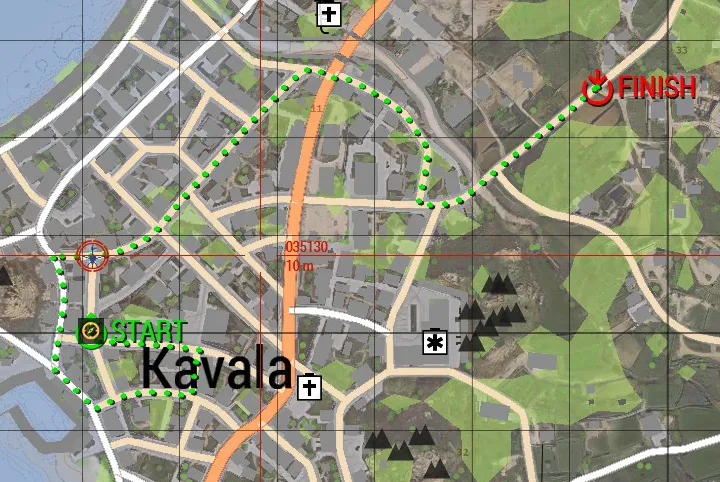 The Alley Slalom Route
The Loop — Hard
Sponsored by the Kavala Tourism Board, presumably because it passes almost everything they would like visitors to see. The Loop is a nearly four-kilometre circuit around Kavala and Aggelochori. It is not the most technical route in the series, but it is long enough for every small mistake to become acquainted with the next one. Keep your concentration through the changing streets and open sections. Manage your energy, resist unnecessary heroics and remember that there is still plenty of lap remaining after the first good sector. Anyone can get lucky for thirty seconds. The Loop asks whether you can keep making good decisions for several minutes.
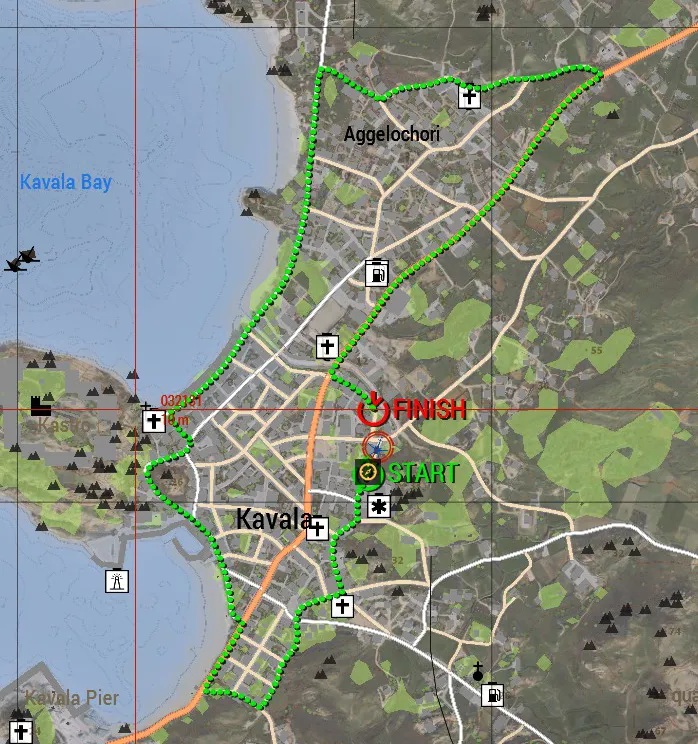 The Loop Route
The Snake — Hard
One glance at the route map explains the name. The Snake winds north from the southern approaches toward central Kavala, repeatedly doubling back through streets that appear to become narrower whenever you look away. Long straights are rare. Recovery time is rarer. Look ahead, anticipate each reversal and have the next turn planned before you finish the one you are in. This is a course for pilots who place the helicopter exactly where they want it rather than merely pointing it in approximately the correct direction and applying more collective. Fly with precision. The Snake has bitten better pilots than you.
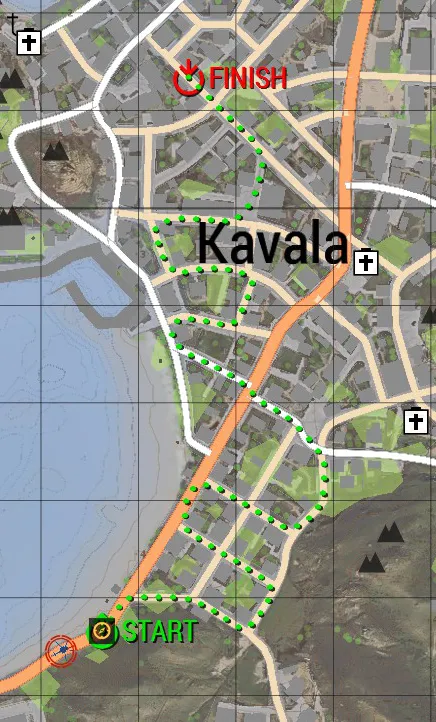 The Snake Route
Death Spiral — Hard
The Death Spiral works gradually inward toward central Kavala, curling repeatedly back across itself until the pilot begins to suspect the course designer had a personal grievance. Repeated changes of direction make pedal coordination critical. Let the tail get lazy and a perfectly respectable run can become a very short investigation by the municipal authorities. Keep scanning ahead. Finish one turn already thinking about the next, and use small, deliberate inputs rather than wrestling the helicopter around every corner. Your pedals were made for this. Your paintwork probably was not…
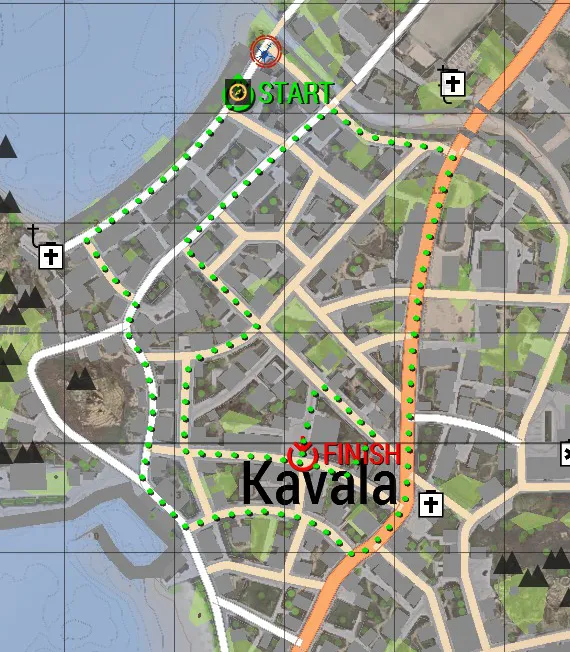 Death Spiral Route
Ebb & Flow — Hard
Laid out by one of the series’ longest-serving veterans, Ebb & Flow is the long way round, and it was meant to be. Halfway through, the course abandons the streets for open water, and for a few precious seconds you’ll skim the waves with the finest view of Kastro Fortress anywhere in Kavala. Enjoy it briefly. Water can make it hard to judge your height , and the shoreline arrives all at once. Back in town the route loops around the hospital, where a certain kind of pilot has developed the habit of giving a cheery wave to injured competitors recovering inside. The organisers would like to stress that this is not encouraged. The patients would like to stress that it is noticed.
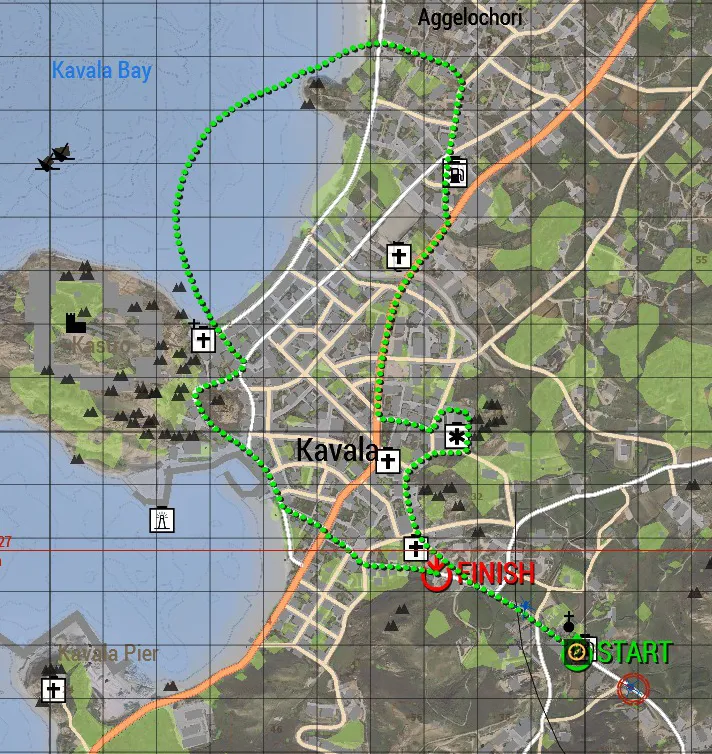 Ebb & Flow Route
Code Blue — Hard
The finish line is at the hospital. The organisers describe this as convenient. The medical staff describe it differently. Code Blue earns its destination with a tight, deliberate run through some of Kavala’s more built-up streets. The hospital may be visible before the race is finished, but do not let that comforting sight distract you from the rooftops, turns and masonry still between you and medical attention. Keep the aircraft settled through the tighter sections and avoid forcing the last few corners simply because the finish is close. The medical team is standing by, try not to make their day too interesting.
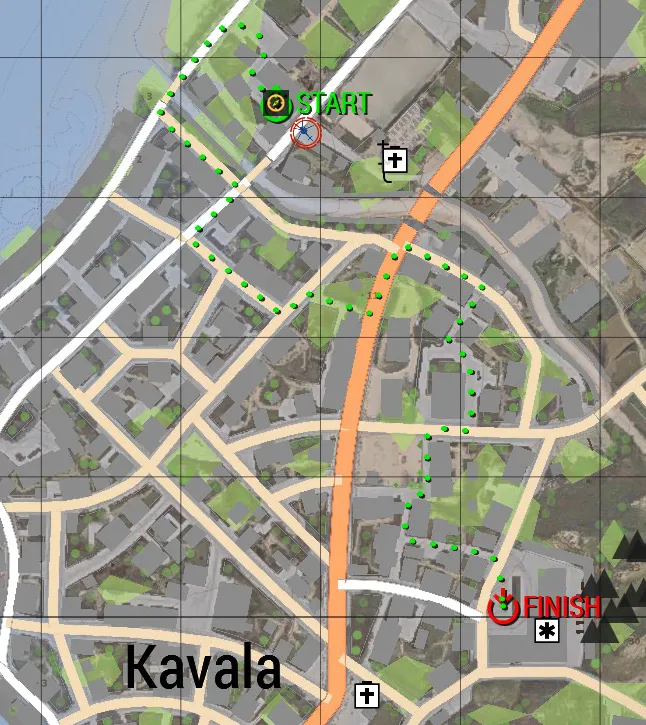 Code Blue Route
Take Me To Church — Very Hard
Some consider it a pilgrimage, others a funeral procession. Take Me To Church is the most devious route in the series, threading past Kavala’s houses of worship and through some of the least forgiving gaps anybody has yet managed to get approved. The highlight is Cooter’s Corner, where generations of pilots have attempted to reproduce Cooter Glidepath’s famously questionable line past the church. It is technically flyable at low level. This statement should not be confused with advice. Read the route well ahead, keep your turns deliberate and remember Cooter’s only surviving piece of guidance: “When the bells get loud, turn left.” The church steeples are landmarks, not targets.
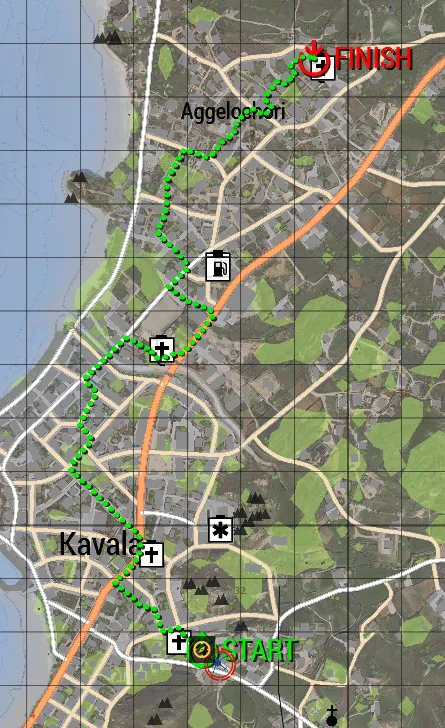 Take Me To Church Route
Random Route
Random Route generates a fresh course through Kavala rather than selecting one of the fixed hand-built layouts. It is ideal when you want variety or a route nobody has memorised. Random routes tend to be long, and on the hard side.
After a random route has been generated, it remains in the route dropdown as a selectable route until you exit the mission. You can fly it again during that session, rather than generating a new layout every time you open the dialog.
You can also save a run on a random route. The save contains the generated route itself, so sharing that replay save allows another pilot to load and attempt the same course. Loading a save that contains a random route restores that route to the dropdown, even in a later session.
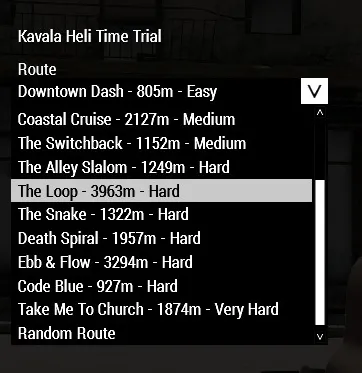 Hand-built routes are listed in increasing difficulty, with Random Route available for a fresh generated course.
5. Following the route
Route marker styles
The Route Markers option changes how the course is shown:
-
Globes place floating green sphere markers along the route, with yellow arrows at sharp turns. Computer game style, highly visible, easy to follow, but a little less immersive. These markers are not solid, and are semi transparent. You can fly right through them.
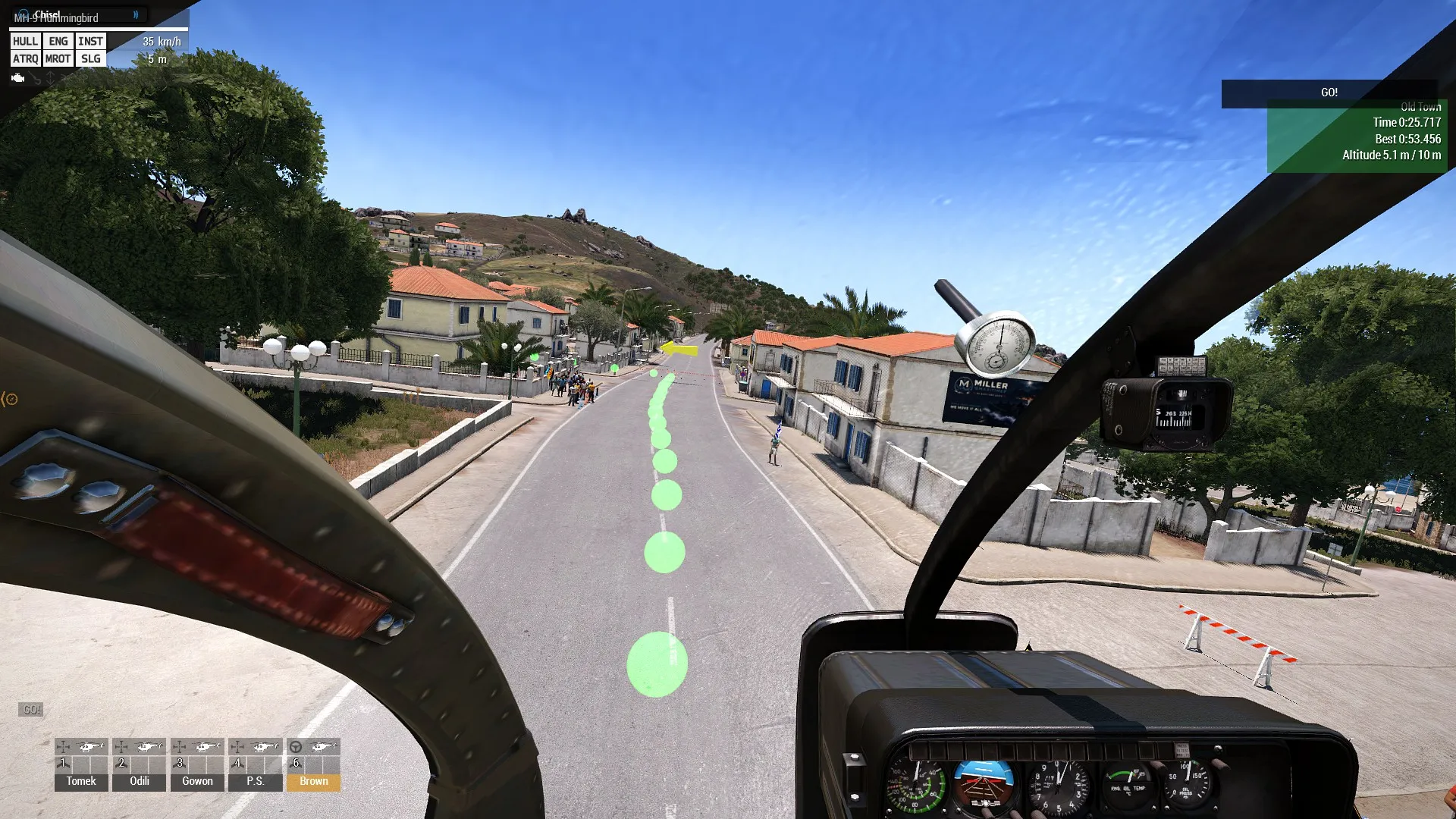 Globe markers provide a floating visual line to follow.
 -
Road Arrows paints arrows on the road and uses painted turn signs at corners. This is harder to read at speed but looks more like a street race. Buoys are used over water to replace the arrows. More immersive, but ups the difficulty a little. The turn signs and buoys are physical objects, and can be collided with.
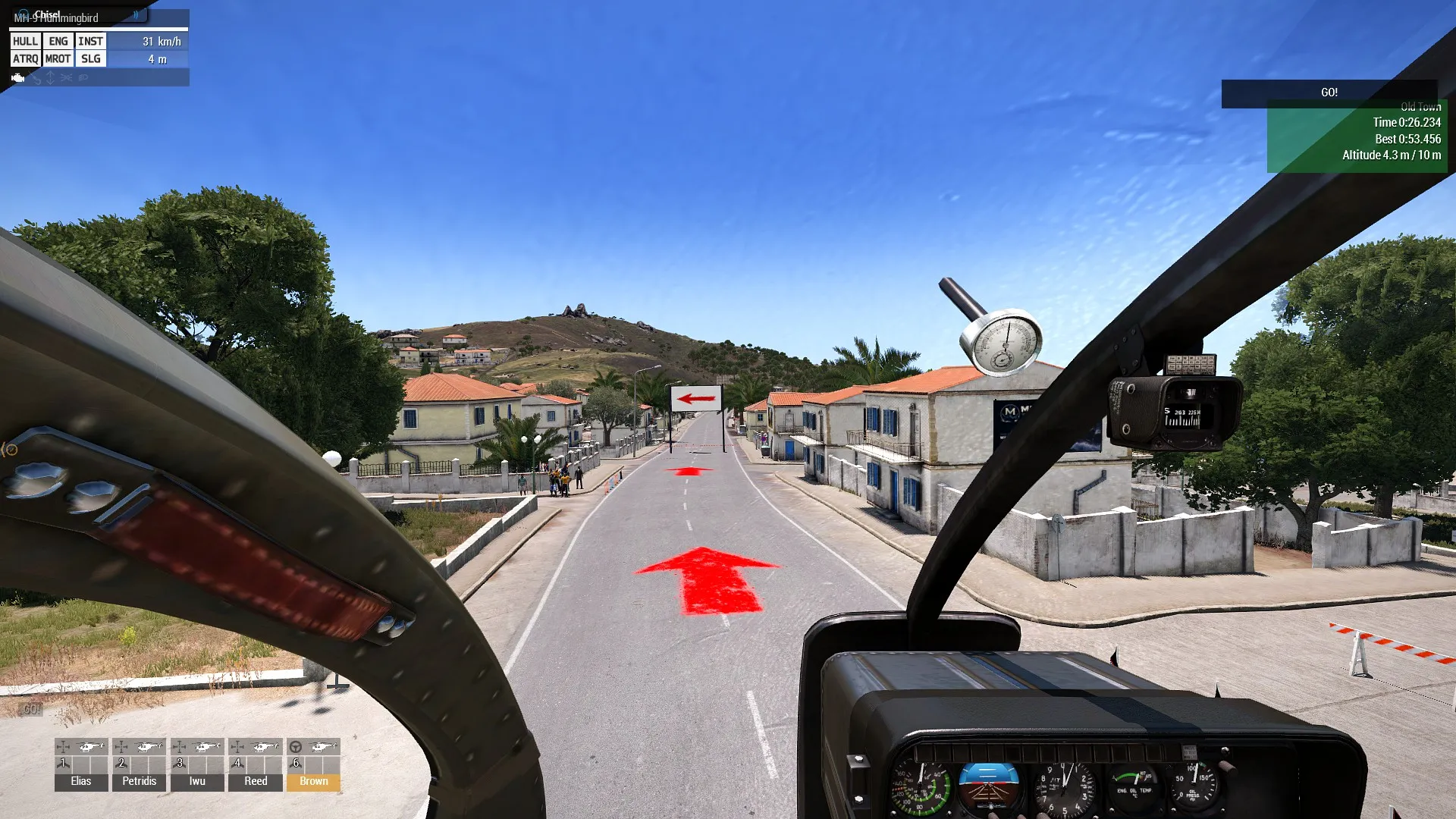 Road arrows place the route directly on the surface, more immersion, a little harder to follow.
The Turn Arrows option can switch the turn arrows off if they are getting in the way, or if you just feel like upping the difficulty.
You can open the map before you take off to see what the route looks like before you start flying.
The route on the map
The selected route is drawn on the Arma map before and during the attempt. The map view shows the route’s sequence of points across the town, coast, hills, or open water, so you can understand the overall shape before committing to the first turn. The start and finish lines are marked.
The map is useful for planning: identify long approaches, reversals, water crossings, and the point where an open section tightens back into streets. During flight, the GPS and physical route markers are safer quick references. Use the full map when you are on the ground, before take-off; do not open it in the middle of a tight low-level section just to recover a turn you failed to read.
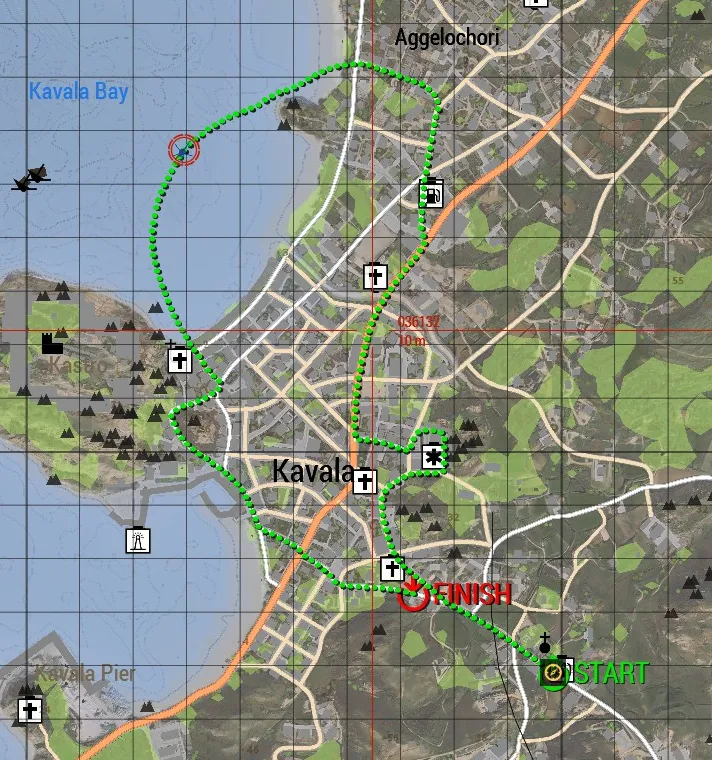 The map provides the wider route picture, including your position and the start and end of the route.
Pace Trail
Turn on Pace Trail when you want something to chase. The orange trail shows a previous run alongside you. Depending on the selected option, it can represent your last attempt or your best time on that route. If you are trying to carve just a little more off your best time, this will let you know how your current run compares.
The Pace Trail is a timing reference, it will not mimic your exact position on the route. If you cannot see the pace trail balls, you are probably beating your last or best time. If you can see it, you need to gain on it if you want to set a new best.
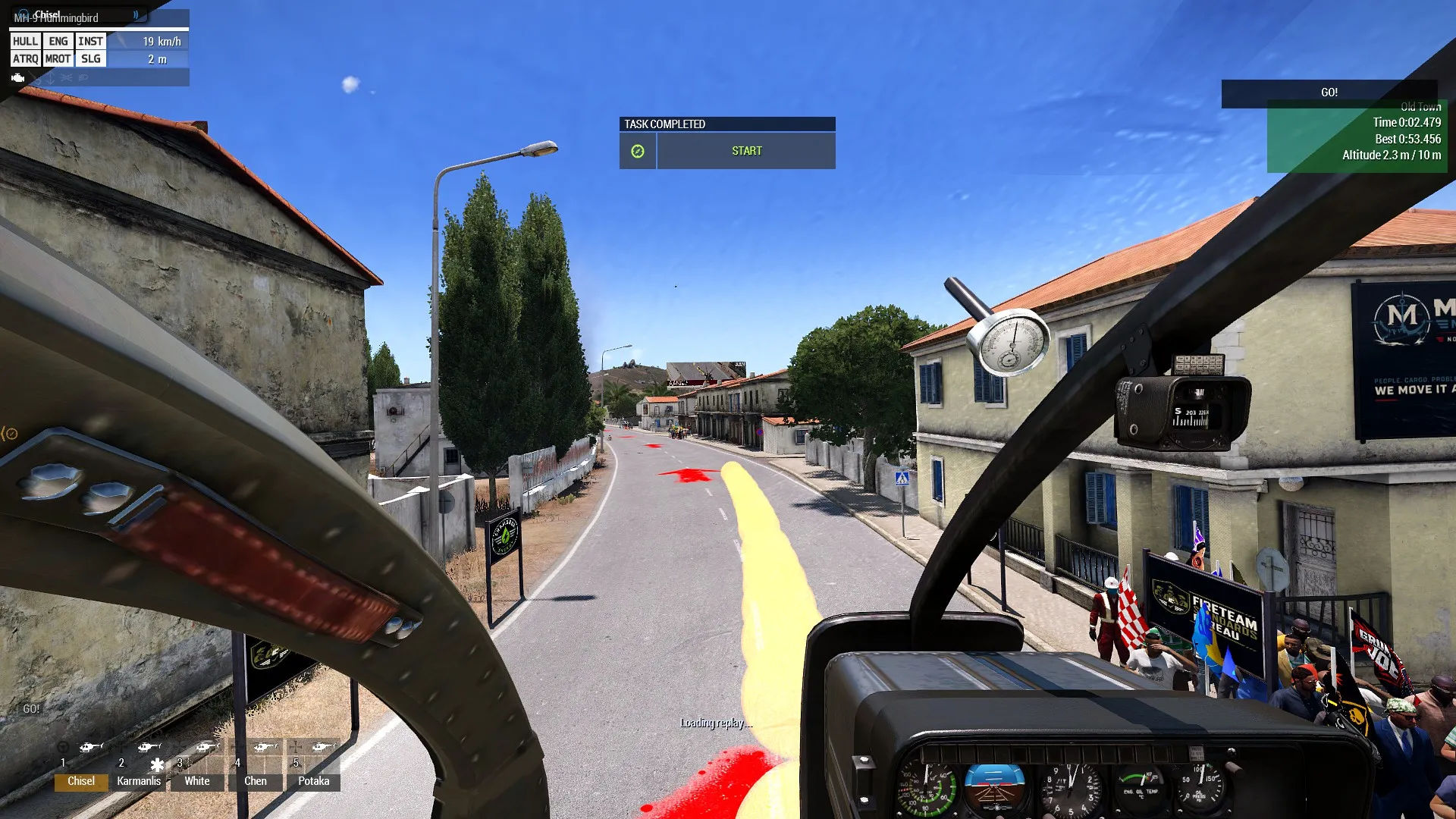 The Pace Trail showing a previous run’s progress as you fly.
6. Scoring and penalties
The after race summary separates the raw time from penalties and bonuses. A fast run is not automatically a good run if it spends too long above the altitude ceiling, leaves the route corridor, or cuts a section of the course.
Time
The clock starts at the start arch and stops at the finish arch. Your displayed result includes any penalties accrued during the timed section.
Altitude
The background of the race overlay on the top right of the screen is coloured depending on your terrain-relative height. It is graded rather than simply switching from green to red: it is green up to 5 m, blends from green to orange between 5 m and 7.5 m, is orange from 7.5 m to 10 m, and is bright red above the 10 m ceiling. Above the 10m ceiling, a separate flashing OVER ALTITUDE LIMIT warning appears; Once it turns red and you see the warnings, you are incurring a penalty.
The normal ceiling is 10 metres above terrain. Staying below it is part of the challenge and can earn a low-altitude bonus. Both the maximum altitude you reached, and your average altitude can give you seperate bonuses. Terrain-relative altitude is used, so the limit follows the ground rather than being a fixed height above sea level. That means you can be only 1m above a building, but still over the 10m limit. With many obstacles, you need to go around, not over to get that bonus.
During a run the background colour allows you to determine how you are doing on altitude at a glance..
Route deviation
The marked route corridor gives you room to fly a practical line around corners. Get too far from the marked route and you will get an out of bounds warning and start to incurr a penalty. The longer you remain too far from the marked route, the more the penalty costs.
Cutting the course
Do not skip a loop or section of the route. A tight line through the inside of a corner is fine, but crossing directly from one distant section to another to avoid the intended course fails the run. Your time will be disqualified, and will not count or be recorded as a best run.
Practice runs
Invincible mode is useful for learning a route without taking aircraft or pilot damage. It does not disable crash detection, collision physics, altitude penalties, route failures, or other scoring consequences. Invincible runs do not count toward your best time, so switch it off when you want a competitive result.
7. Replays and saved runs
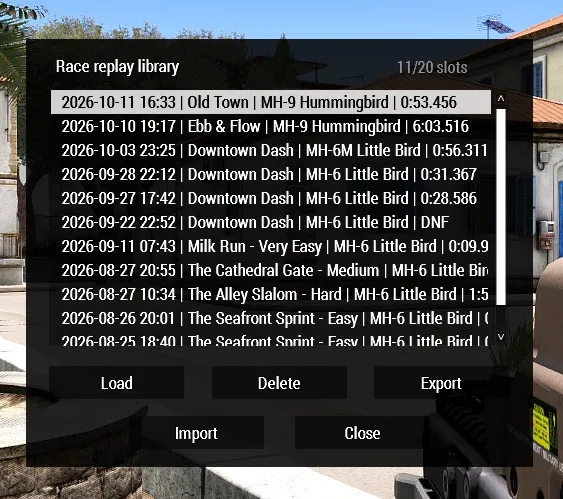 The replay Library is where saved attempts can be reviewed, loaded, exported for sharing, imported, or deleted.
Every completed or failed attempt can be reviewed from multiple camera angles. Replays are useful for finding the first mistake rather than only studying the final crash or missed turn. You can save replays to refer to later. And turn on cinematic mode and screen record the result if you want to show off on YouTube.
Replay Options
Open Replay Options… from the run summary when you want to configure the replay itself. These settings affect playback and overlays, not the next aircraft or route selection. They can be changed before watching a replay and are separate from the race Options… dialog.
- Cinematic Mode hides the replay controls, flight-controls overlay, keystroke visualiser, route markers, and other HUD elements so the replay is clean for viewing or recording. It temporarily hides them; it does not erase your saved preferences.
- Show Replay Controls controls the on-screen replay help overlay. Press
Jduring playback for the same toggle. - Show Flight Controls displays the recorded cyclic, collective, pedal, and artificial-horizon information. Press
Kduring playback to toggle it. - Show Keystrokes displays the recorded keyboard inputs independently of the flight-controls display. Press
Vduring playback to toggle it. - Show Pace Trail if you want a separate reference trail visible during replay for comparing progress against a previous or best run.
- Show Keystrokes Have the keyboard portion of the flight controls display visible.
- Show Artificial Horizon Show/Hide the artifical horizon portion of the flight controls display.
- Position Flight Controls opens a scaled preview in which you can drag the flight-controls overlay to a more useful part of the screen. The keyboard visualiser moves with it, and the position is remembered. If you choose to have the Flight controls visible during game play, they will appear in the same position.
- Reset to Defaults restores the replay settings on this dialog without changing the saved replay or the race settings.
The Replay View selector is on the main race/summary dialog because it chooses the camera used to start playback. Replay Options controls what is drawn over that camera view. This distinction is useful: choose Pilot, Chase, Free Walk, or another camera in Replay View, then use Replay Options to decide which overlays and cinematic elements accompany it.
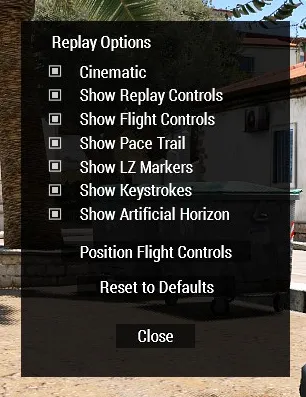 Replay Options controls the presentation overlays and camera experience while watching a recording.
Replay views
Choose the starting view in the Replay View control before selecting Watch Replay. The race mission currently offers the following views:
Chase
The camera follows behind and above the helicopter, keeping the aircraft as the main subject while showing the road, route markers, and the next section of the course. This is the most useful general-purpose view for reviewing line choice, speed, banking, altitude, and whether a correction began too late. It is the perfect view for seeing exactly what you clipped with your rotors.
The chase camera can be adjusted during playback. Its distance, height, pitch, orbit, and zoom controls change the framing around the moving helicopter; R restores the default adjustments for that view.
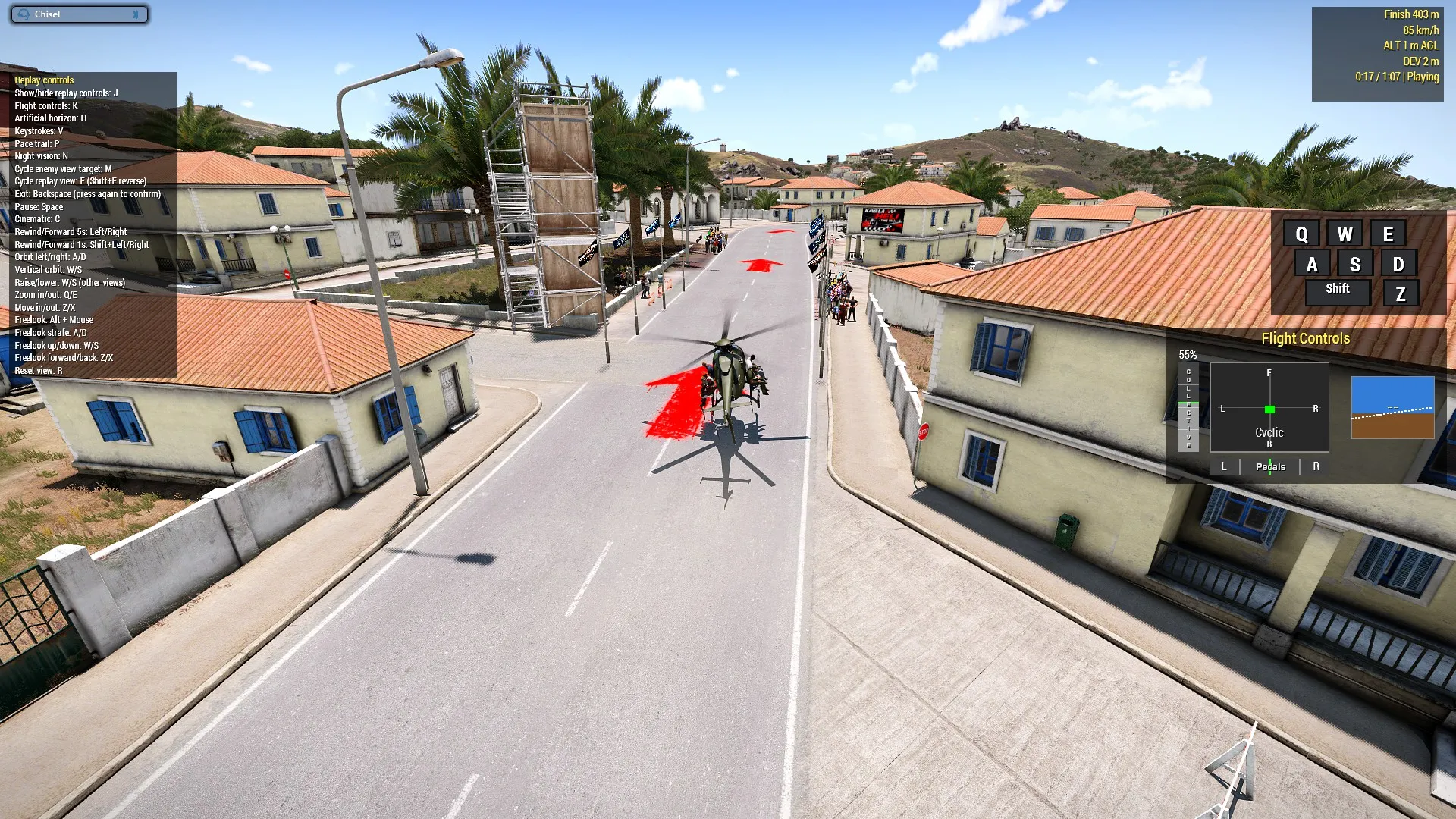 Chase replay view following the helicopter through the route.
AAN News
AAN News is the broadcast-style replay. You will notice camera towers, with cameraman and cameras placed along the route. The will track you as you pass. You can see a little of their work on the live video billboards they fly by. If you want to see what the news broadcast looks like, This is the view for you. In addition to the camera towers, an eye in the sky helicopter orbits the route and contributes its feed from time to time. Camera changes and broadcast framing are automatic, so this mode is best for watching the overall spectacle or recording a polished video of a run.
The news view has its own timing and camera transitions. Rewinding or fast-forwarding is supported, but the broadcast camera may need a moment to settle into the correct shot after a seek. The normal camera-adjustment controls are intentionally limited while AAN News owns the framing.
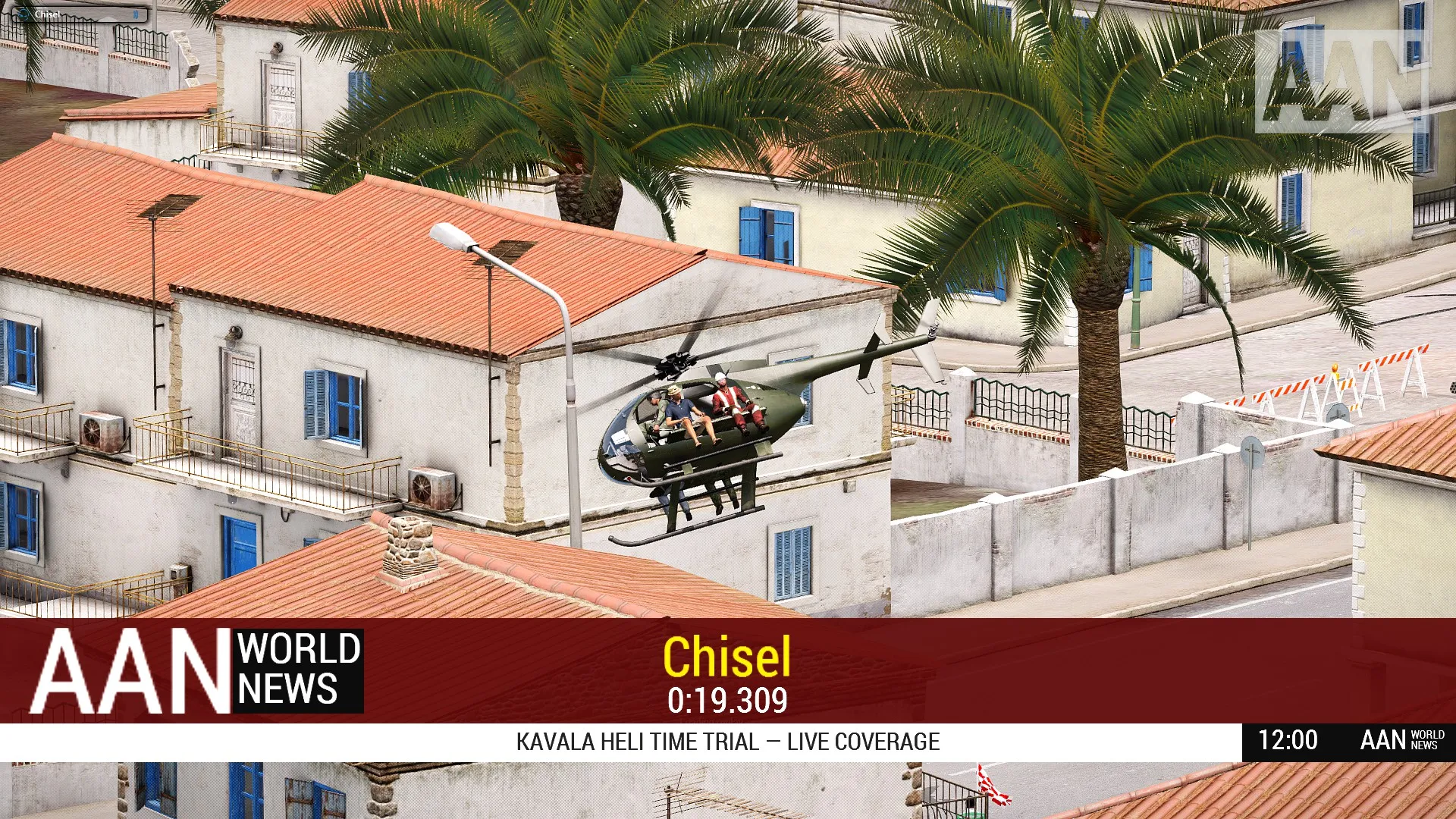 AAN News replay view.
Highlights
Highlights is an automated multi-shot edit. It chooses a sequence of replay views and holds each shot long enough to show a useful moment of the run, with special attention to route progress, corners, and the finish. It is intended as a quick recap or a starting point for screen recording rather than as a precise frame-by-frame analysis tool.
Because it is a sequence rather than one fixed camera, Highlights is selected before playback and is not part of the ordinary F view cycle. Rewinding can cause the highlight sequence to choose or hold a different shot as it rebuilds its timing around the new replay position.
Route Line
Route Line is a low camera placed slightly ahead of the helicopter on the route centreline and aimed back towards it. It makes the intended racing line particularly clear: you can see whether the helicopter is centred, cutting corners, drifting wide, or climbing above the course as it approaches the camera.
This is usually the best view for studying route discipline and turn exits. It is calculated from the selected route, so it remains available for authored and random routes even when there is no special camera object recorded at that point.
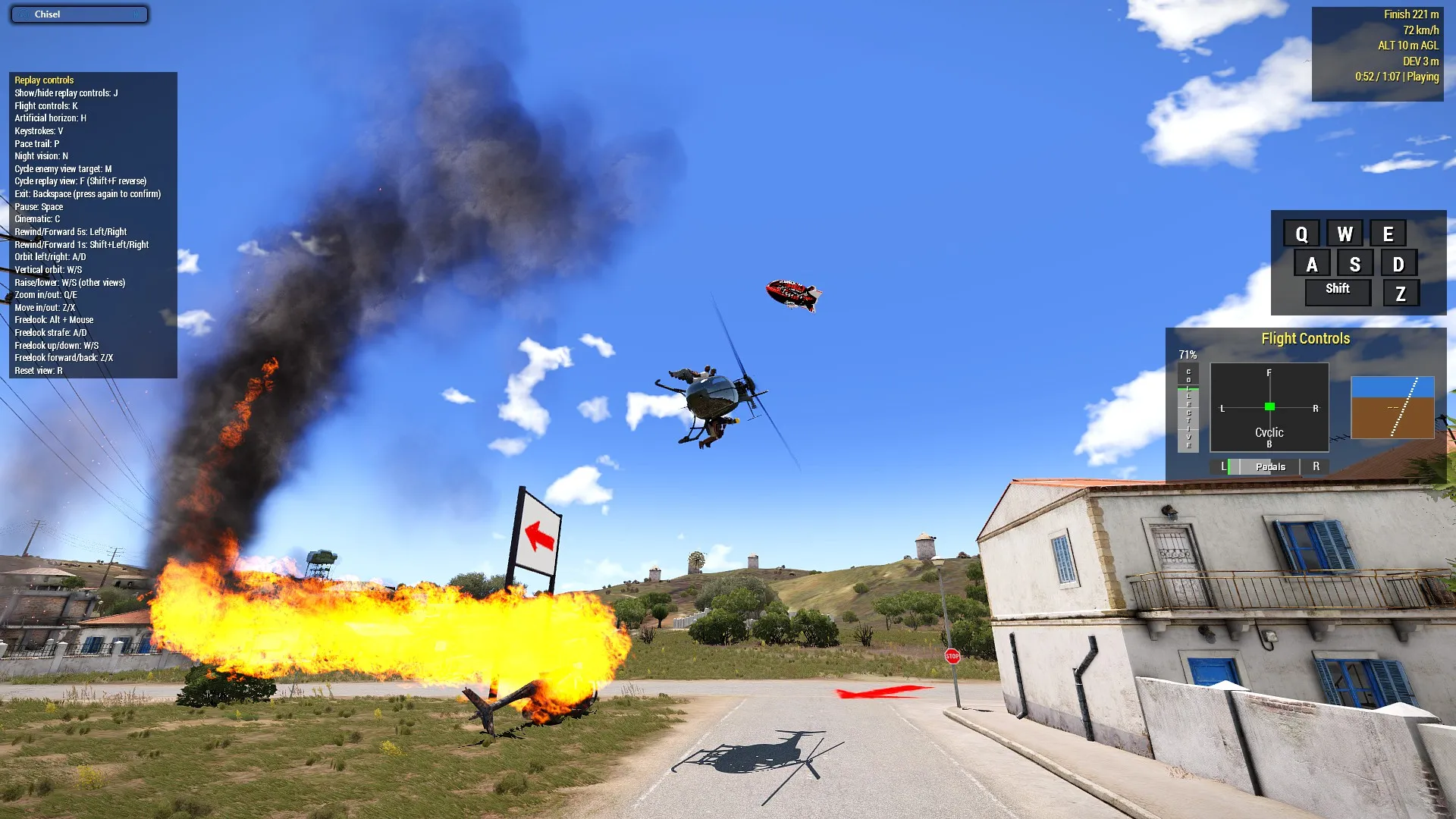 Route Line replay view looking back along the intended racing line.
Pilot
Pilot puts you back in the helicopter’s pilot perspective. It shows the view from the recorded aircraft and is the closest replay equivalent to asking, “What did I actually see when I made that decision?” Use it to review visibility, buildings or signs appearing late, turn-marker placement, and whether the next turn was visible soon enough to prepare for it.
If you have the optional CHS Replay Camera addon installed, Pilot view can also capture and replay the pilot’s freelook and zoom. That includes the look movement produced by TrackIR-style head tracking or another freelook setup, so the replay can show where you were actually looking rather than only the helicopter’s forward direction. Disable live TrackIR or other head-tracking input while watching the replay; otherwise it can override the recorded view.
Pilot is a special replay mode rather than a normal external camera. It is chosen before playback and cannot be entered or left with the ordinary F / Shift + F cycle. The replay takes control of the pilot position while it is active; use Backspace to leave the replay when finished.
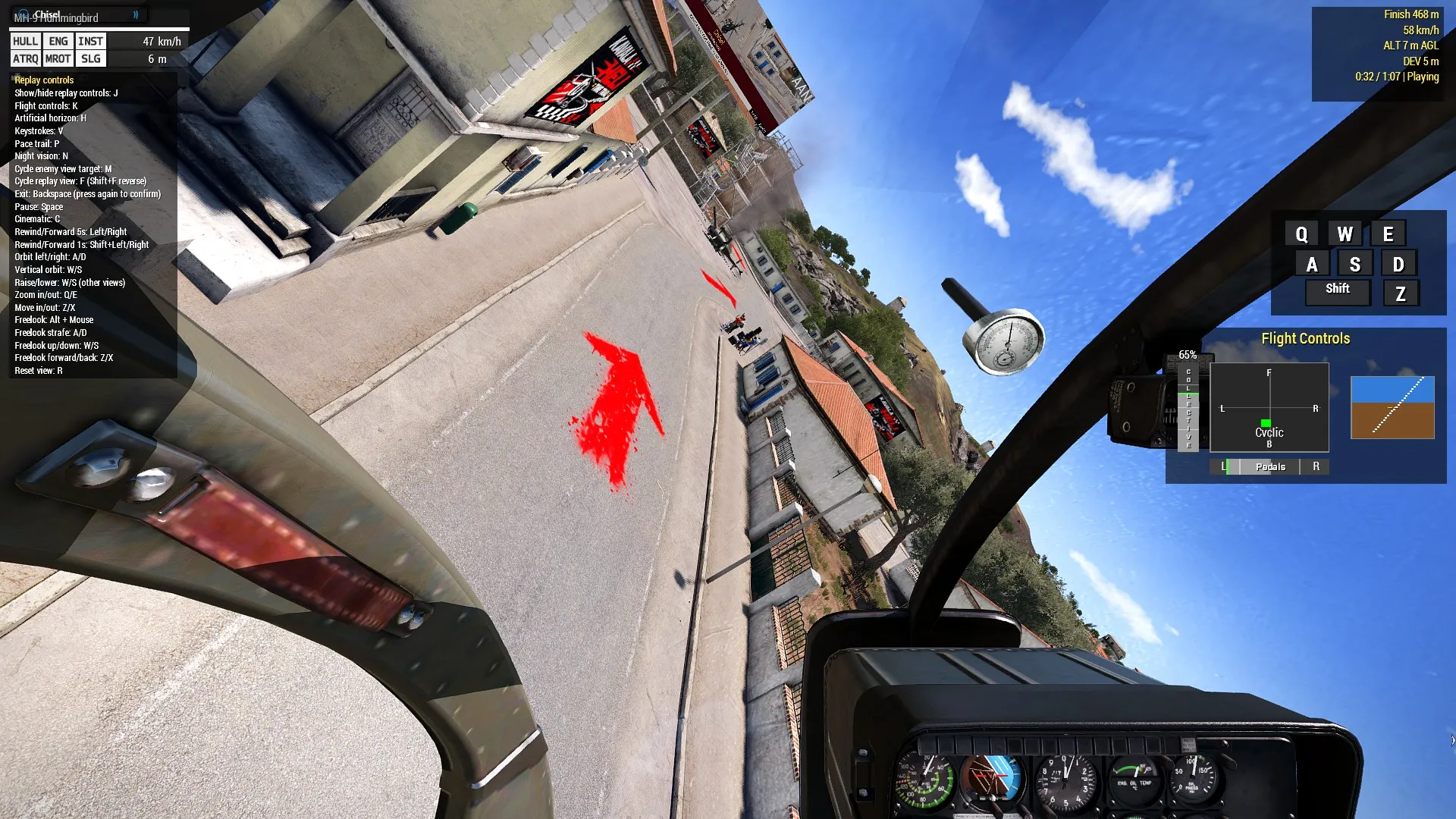 Pilot replay view showing the recorded cockpit perspective.
Free Walk
Free Walk spawns an invincible, unarmed character near the route and lets you walk around while the replay continues. It is useful for inspecting the course from ground level: check the clearance under a turn, see how much of a marker is visible from the road, examine a tower or sign, or watch the helicopter pass from the position of a spectator. You will find that the mouse wheel menu will let you Spawn Vehicle Here , which drops a vehicle in front of you to get around in. Pick the perfect spot to watch your helicopter pass. Hit rewind when you get there, then settle in and watch the show.
Free Walk is also a special mode. Select it before starting the replay; it cannot be entered or left using F / Shift + F. The ordinary replay camera controls are disabled so that W, A, S, and D remain available for walking. Use Ctrl + Alt + Left / Right to seek by five seconds, or add Shift to seek by one second. Ctrl + Alt + C toggles cinematic mode, Ctrl + Alt + J toggles the Free Walk controls overlay, and Ctrl + Alt + K toggles the flight-controls overlay. Backspace arms the exit; press it again to confirm.
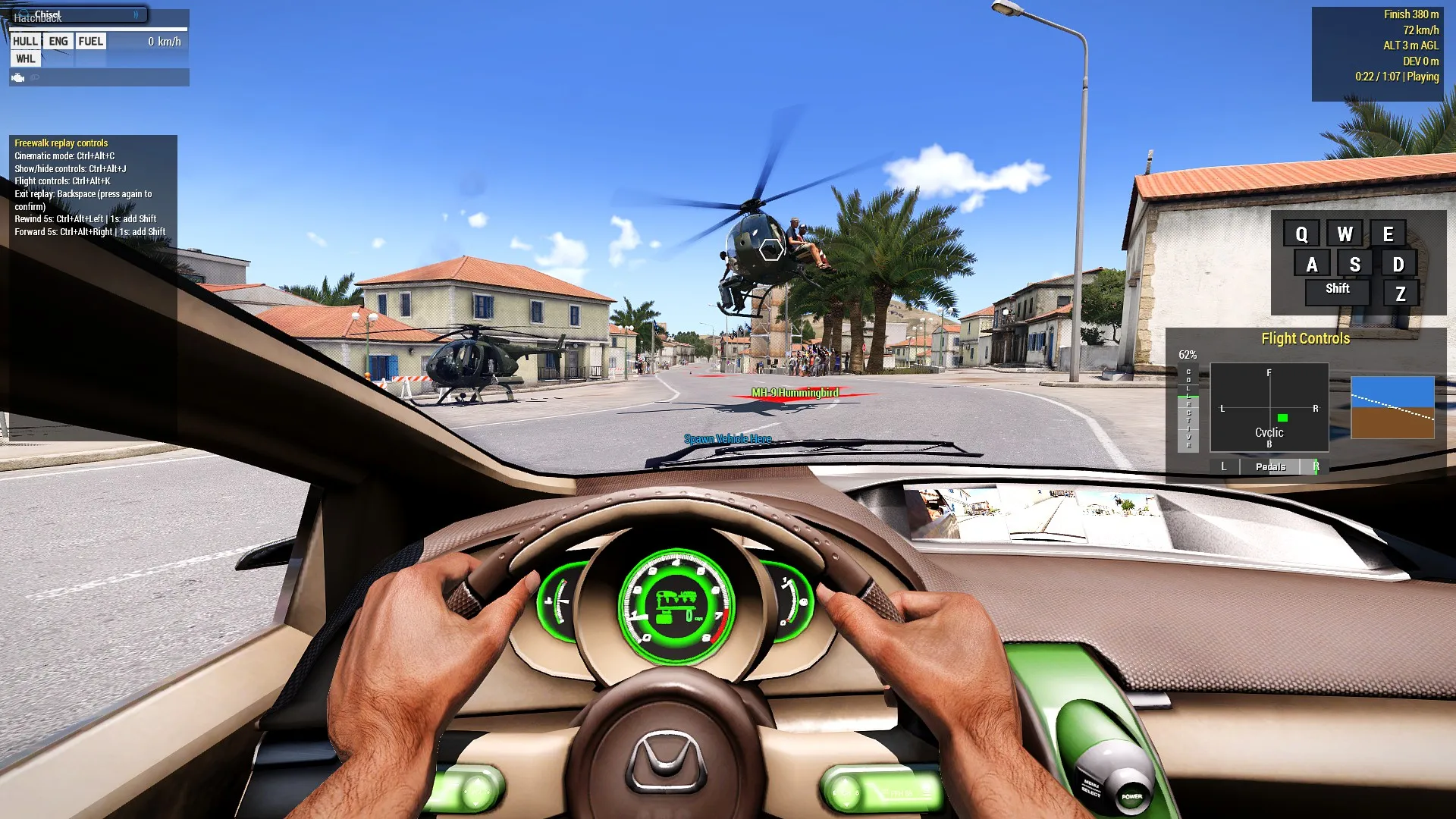 Free Walk replay view showing the route from ground level, and in this case, from within a spawned vehicle.
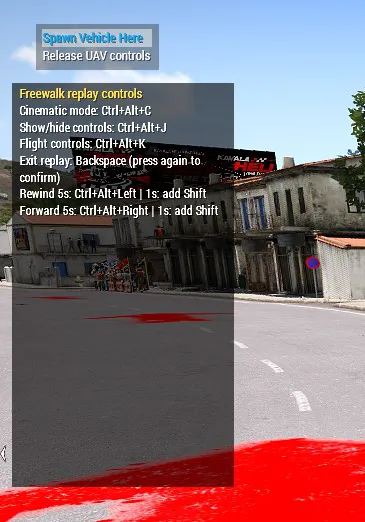 In Free Walk, the scroll-wheel menu can spawn a vehicle at the players current location for easier movement around the route.
Spectators
Want to see what kind of show the spectators got? This is the view for it. Spectators places the camera at a sequence of roadside vantage points. Each shot watches the helicopter approach and pass, then cuts to the next usable position farther along the route. The placement system prefers clear views of significant corners, so sharp turns generally receive more attention than an uneventful straight. The sequence ends at the finish line.
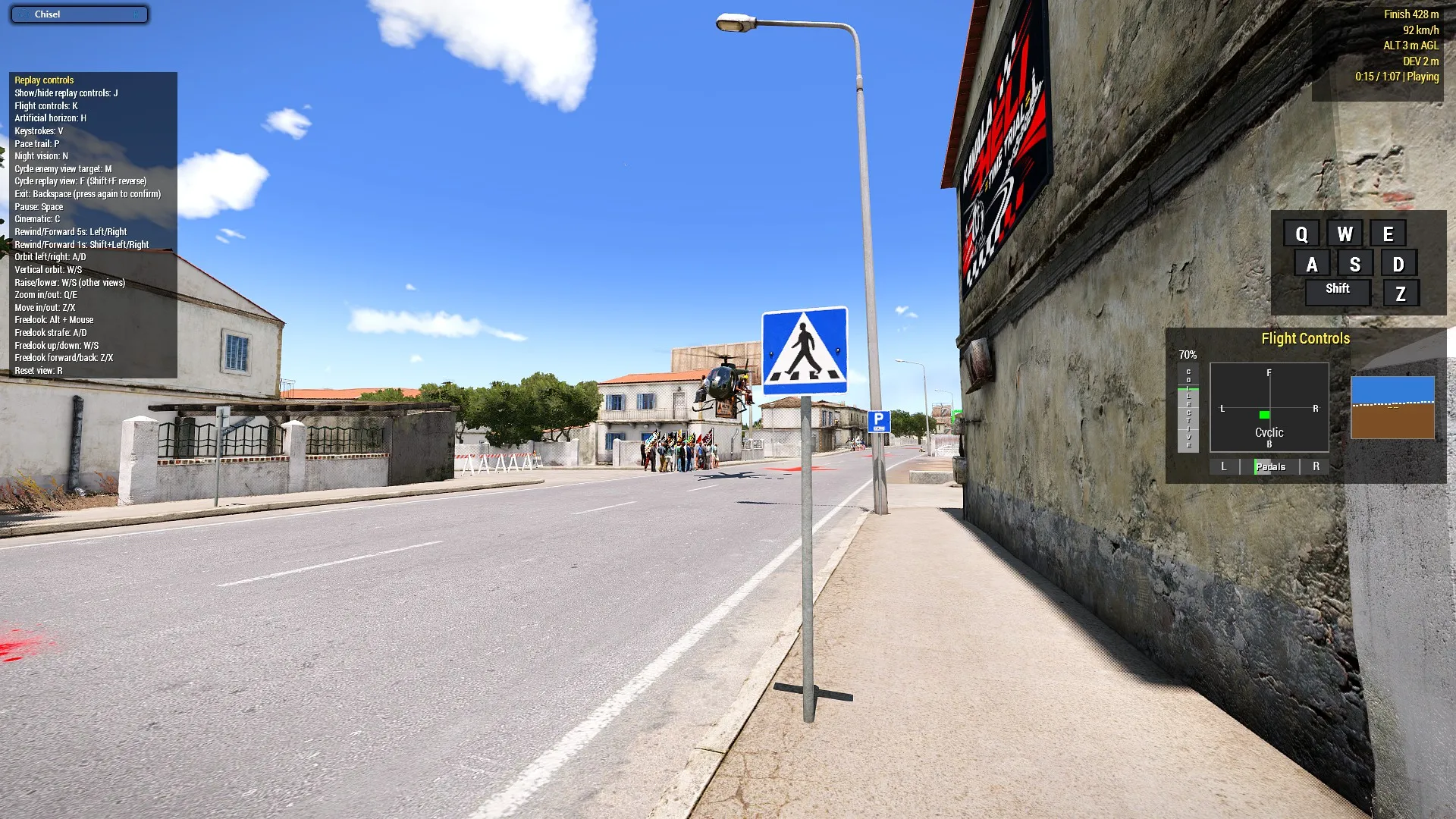 Spectators replay view watching the helicopter from beside the route.
Bird’s Eye Follow
Bird’s Eye Follow tracks the helicopter from high above and to the side. Unlike a stationary map-like overhead shot, it moves with the aircraft, keeping the route shape and the helicopter’s relationship to nearby streets visible together. Use it to review broad line choice, shortcutting, corner geometry, and how much space the helicopter used through a sequence of bends.
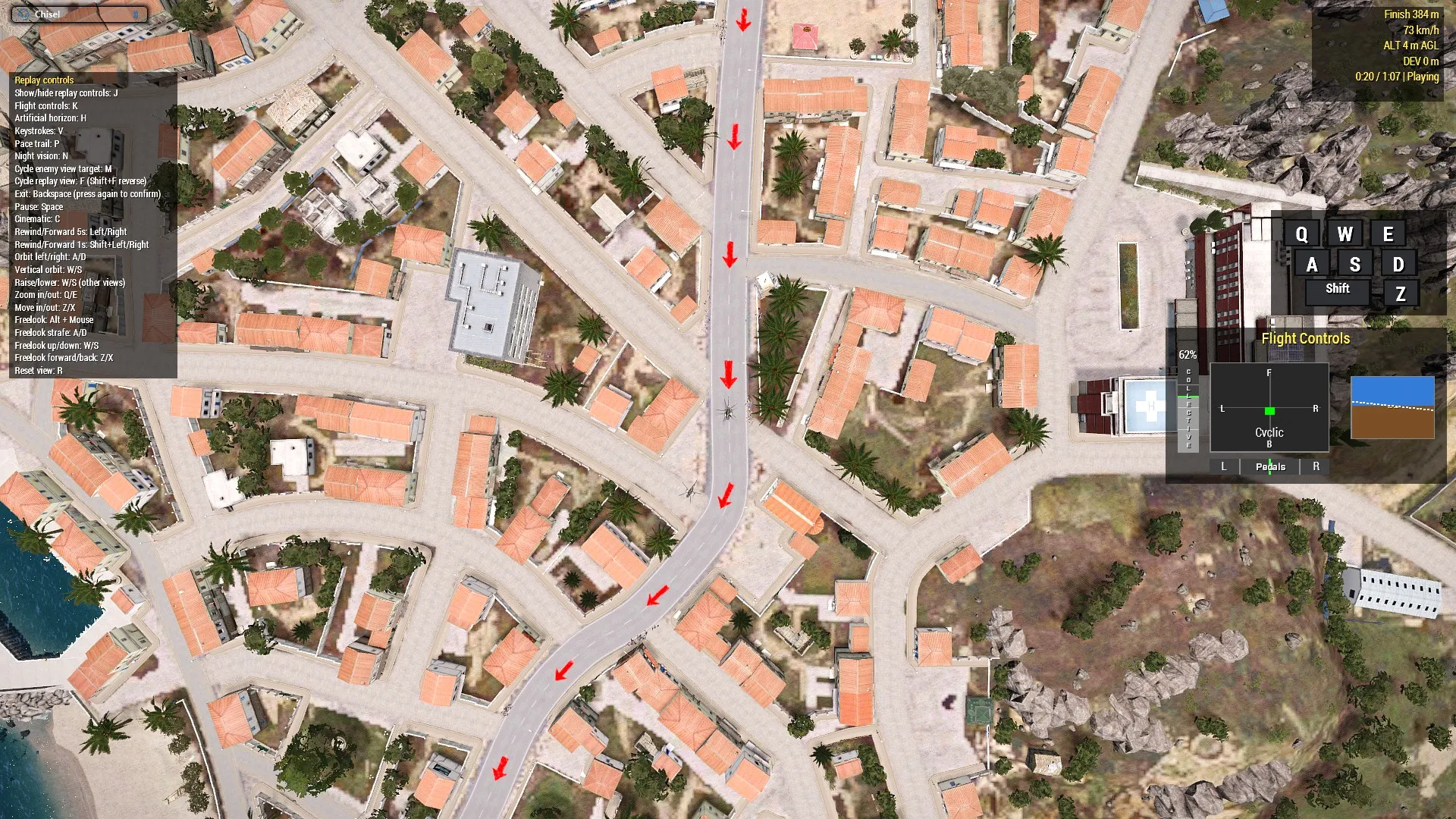 Bird’s Eye Follow replay view showing the helicopter and route from above.
Start
Start is a wide static shot of the start arch. It shows the approach, the launch, and the moment the helicopter crosses the start line. It is useful for checking whether the run began cleanly, whether the aircraft was aligned with the route, and how much room was available before the first turn.
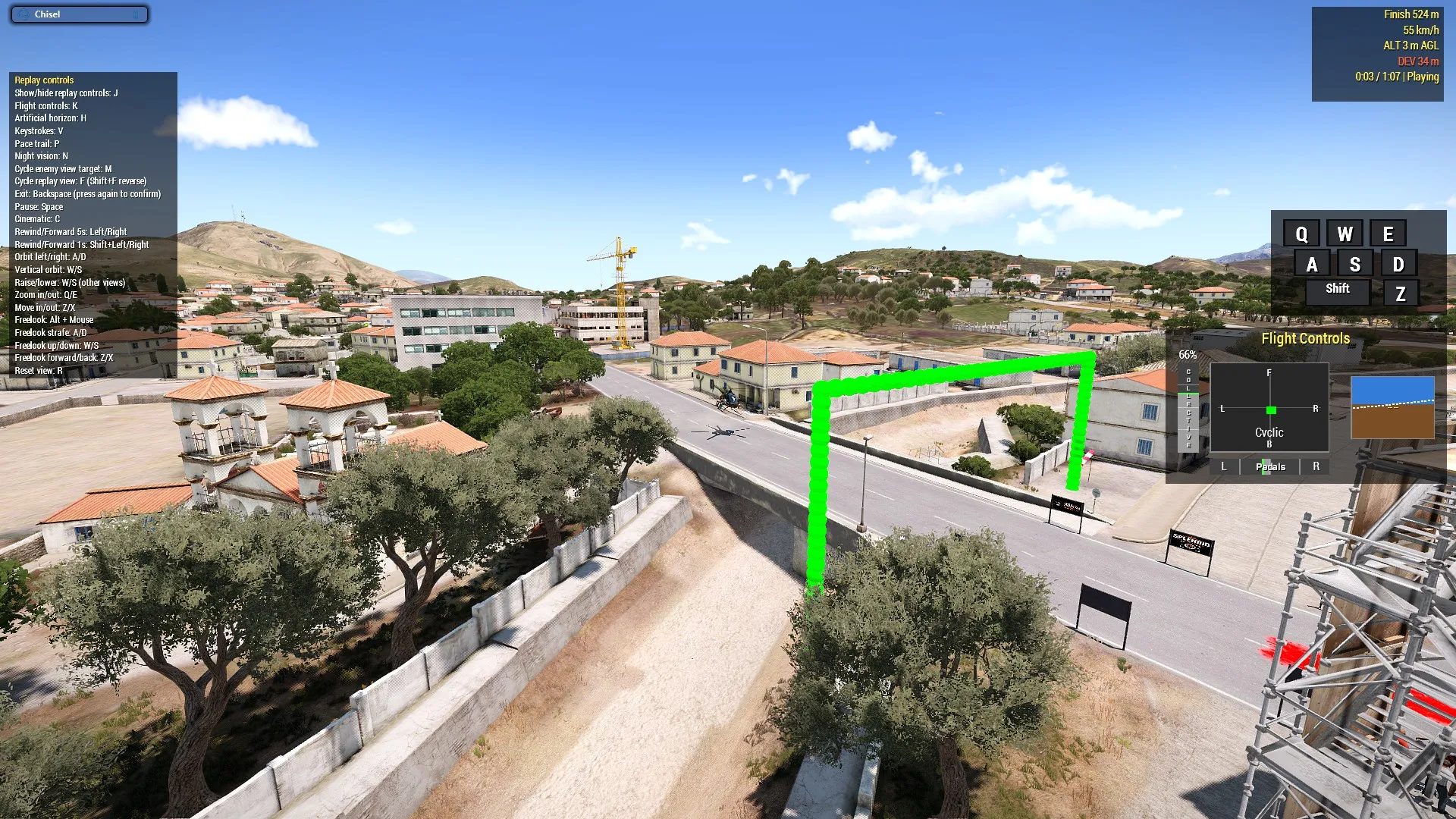 Start replay view showing the approach to the start arch.
Finish
Finish is the corresponding fixed view of the finish arch. It shows the final approach and the crossing that stops the clock. Use it to review the last turn, the line into the finish, and whether a late correction or altitude change cost time at the end.
Finish is only offered when the replay has a valid recorded finish position. That is why it may not appear for an incomplete or unusually short replay. That means if you wrapped your helicopter around a lamp post rather than crossing the finish line, this view will not be available.
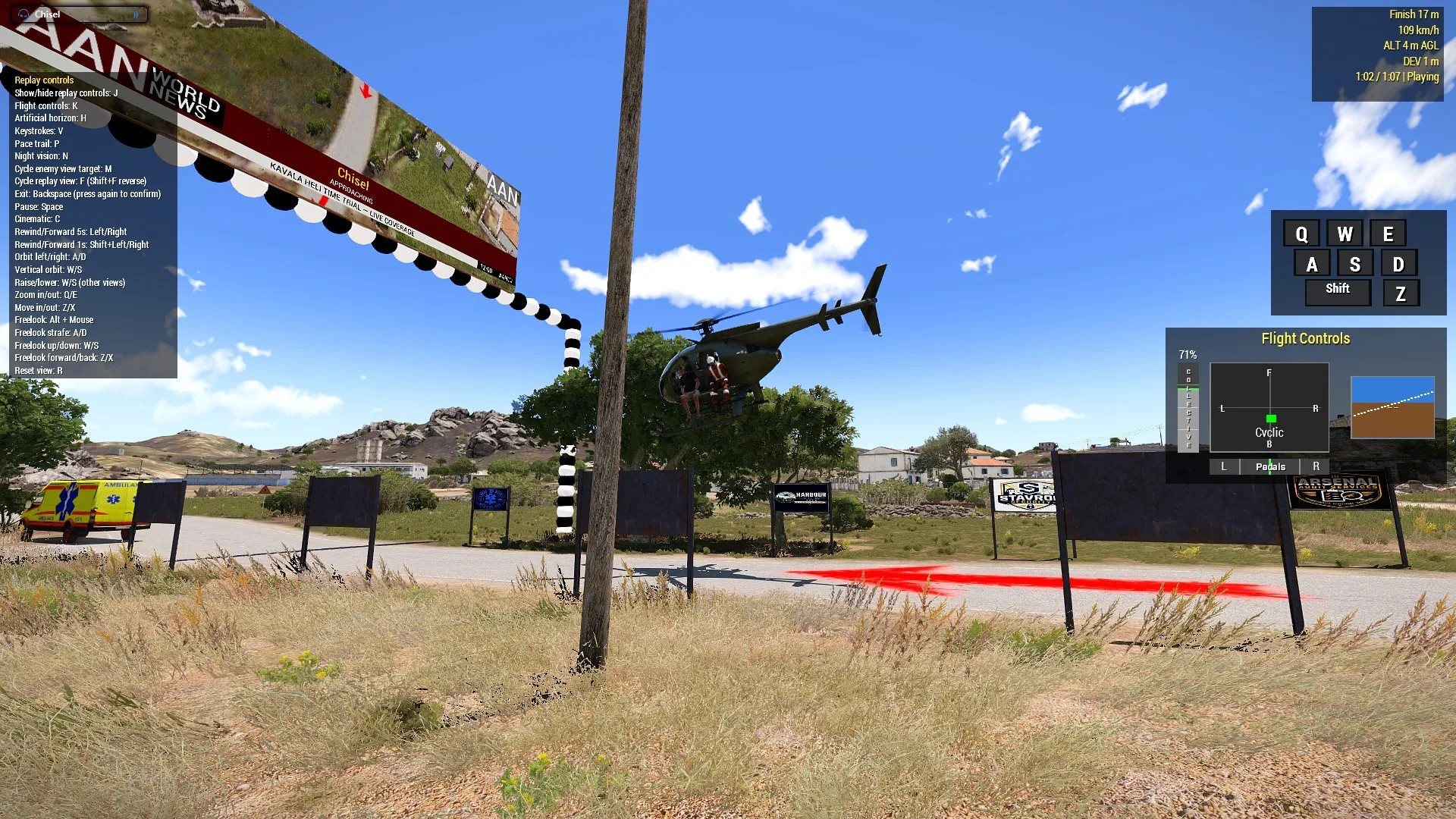 Finish replay view showing the approach to the finish arch.
Changing views during playback
The standard camera views can be cycled during playback with F (next) and Shift + F (previous). The cycle includes the ordinary route and external cameras—Chase, AAN News, Route Line, Spectators, Bird’s Eye Follow, Start, and Finish when valid—but deliberately skips Pilot, Free Walk, and Highlights because those modes require separate setup or teardown.
You can also use F to move away from AAN News, but returning to AAN News hands framing back to its broadcast camera system. Camera adjustments made in one view are reset when switching to another view so that a large orbit or zoom from the previous mode does not produce a broken-looking starting position.
Saving and managing replays
Automatic recording
The race starts recording at the beginning of the attempt, before you cross the start arch. This is deliberate: the saved replay keeps a five-second lead-in before the start-line crossing, so you can see the approach to the timed section and the moment the clock begins. The Pace Trail is aligned to the crossing itself and does not include that lead-in.
Recording continues through the flight and after the terminal event. By default, the mission keeps five seconds after the finish or crash so the replay shows the immediate aftermath. Post-Finish Recording can be set to 5, 10, 15, or 20 seconds in the race options. The setting applies to the next attempt and is remembered in your profile.
The replay is recorded for the duration of the attempt and then through the configured post-finish or post-crash tail.
Recording and saving a run
Recording is separate from saving. Finishing or failing an attempt leaves the current replay available in the run summary, but it is not kept permanently unless you choose Save replay. Crashing before you reach the start line will not give you a replay or recording.
From the run summary:
- Select Save replay.
- Accept the generated name or replace it with a name that will help you identify the route, helicopter, or result.
- Confirm the save. The replay is written to the race mission’s own replay library.
The replay Library
Open Library from the run summary to manage saved race replays. Race replays are stored in your Arma profile and persist across mission restarts.
The race library holds up to 20 saved replays. Its list includes the replay name, route, helicopter, result, elapsed time, and save date. Select an entry to:
- Load Loading restores the saved race attempt and then returns you to the run summary. If you select Watch replay, you will see the replay from the save. If you click start race, you will start exactly the same route, even if the save is of a random route.
- Export Exports the save to plain text that you can share. It will automatically copy the export to your clipboard. You can save it to a text file, or store/share it any other way you like.
- Import Load a previously exported save back into the library. You must have a free slot in your library for this to work. You can use this to load someone elses save into the mission so you can watch their replays.
- Delete it from the profile. Deletion is permanent.
Exporting a replay to share it
Choose Export in the Library and select the replay. The mission copies a serialized replay package to the clipboard and also displays the text. Paste the export into a text file or anywhere else you can store or share text. Preserve the complete text exactly; it is structured data, not a screenshot or a human-readable summary.
Another player can use Library → Import, paste the complete export into the import box, and confirm. The imported replay is added to that player’s library under an “Imported” name.
If you want to share a save with others, I recommend publishing the exported text as a public GitLab Snippet and sharing the snippet URL. GitLab Snippets are a good option because the replay remains plain text, the link can be posted directly in Steam Workshop comments, and the recipient can download or copy the file without needing the original save location.
To share a replay with a GitLab Snippet:
- Export the replay from the mission and keep the resulting .txt file unchanged. Do not paste the replay into a word processor or otherwise reformat it.
- Open GitLab’s Snippets page and create a new snippet.
- Give it a useful title, such as the route name, helicopter, and date. Add the exported .txt file as the snippet content, or paste the complete text if the Snippet form asks for text directly.
- Set the snippet visibility to Public so other players can access it.
- Create the snippet and copy its public URL.
- Share that URL in the mission’s Steam Workshop comments, or send it directly to the person who wants to review the run.
The person receiving the replay should download the snippet as a .txt file, or copy its complete raw text into a text file with the .txt extension, then use the mission’s replay import/load workflow. Keeping the original text intact is important: extra formatting, quoted Markdown, or omitted lines can make the replay fail to import.
Export/import is also the safest way to back up your saves before reinstalling Arma, changing profile, or deleting old entries. Profile-backed saves are local to the current Arma profile; exporting is what makes a replay portable.
The replay Library is where saved attempts can be reviewed, loaded, exported for sharing, imported, or deleted.
8. Options
The Options panel controls the conditions and presentation of future runs.
It is separate from the main race dialog. Use the main dialog to choose the route and helicopter; use Options to decide what the next run will look and sound like and which environmental or practice conditions apply. Options are race-scoped and are remembered for later attempts. They do not alter the authored route, create a new random route, or change the aircraft selected in the main dialog.
Use Reset to Defaults if you want to return the whole Options panel to the mission’s normal settings. The run summary calls out the non-default settings that materially affect a result, so check it before comparing times.
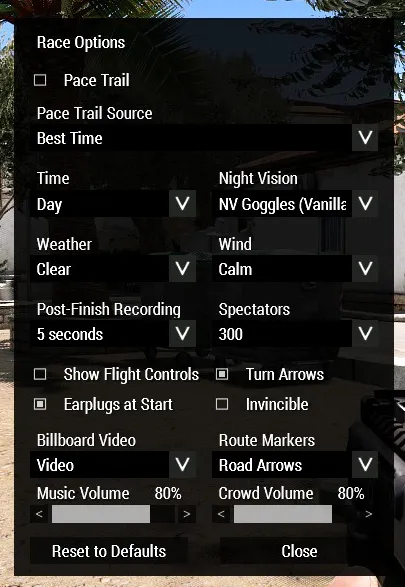 The Options dialog contains the mission-wide settings for conditions, scoring assistance, route presentation, recording, cockpit displays, and audio.
Flight conditions
- Time of day Day, Dawn, Dusk, Bright Night or Dark Night. Changes the sun position, shadows, ambient light, and the visibility of the terrain and buildings. A route that is easy to read in daylight can become much harder to judge at dusk or at night.
- Weather Clear, Cloudy, Rain, Storm, Fog or Random. Changes the atmosphere and visibility around the route. Haze, cloud, and reduced contrast can make distant markers and the intended line through a turn harder to pick out. Designed to let you change the nature of the challenge.
- Wind adds a flight variable that affects ground track, drift, hover corrections, and the amount of pedal or cyclic input needed to hold a line. Wind is part of the run conditions, not merely a visual effect, so compare times only when the wind setting is comparable. The difference made by wind under the standard flight model is fairly small.
- Night Vision lets you choose the specific night-vision equipment used for the attempt from everything available in your running game, including equipment supplied by DLC and mods. If you select Bright or Dark night, you will start the route with your night vision automatically turned on.
Practice and comparison
- Invincible prevents the helicopter and pilot from taking damage during the attempt. It does not disable crash detection, collision physics, altitude penalties, route failures, or other scoring consequences. It is deliberately non-competitive: an Invincible run cannot replace your best time.
- Pace Trail selects the comparison run used by the orange pace trail markers: your last attempt or your best finish on that route.
- Show Flight Controls displays the cyclic, collective, pedal, artificial-horizon, and keystroke information while you are flying. It is especially useful when learning why the aircraft drifts or climbs, and the same selected overlay elements are available during replay.
- Post-Finish Recording controls how much replay is kept after a finish or crash: 5, 10, 15, or 20 seconds, with 5 seconds as the default. It does not change the race time; it only gives you more or less of the immediate aftermath to review in your recordings.
Route presentation
- Route Markers selects Globes or Road Arrows. Globes are the clearer practice aid: floating green markers show the route continuously and yellow arrows identify sharper turns. Road Arrows are painted onto the road, with turn signs and water buoys where appropriate; they look more like a street race but are harder to read at speed.
- Turn Arrows shows or hides the additional sharp-turn arrows. Turn them off if they obscure the route or become visual noise, but remember that the route itself is still present in the globes, road arrows, map, or GPS.
- Spectators controls how many roadside spectators and related crowd elements are placed. Higher levels make the course feel busier and give replays more atmosphere; lower levels reduce scene complexity and can improve performance. Defaults to 200 spectators. You need a pretty high performance setup to manage 1000 spectators.
- Billboard Video controls whether the route’s billboards show live video feeds. This can be expensive to run, and may impact performance on your machine. If you are struggling to get a decent frame rate, try settings it to No Video the billboards and route remain, but the animated content is disabled.
- Music Volume controls the music stations placed around the course, independently of other sound. Set it lower or to zero if you find it too loud with your preferred audio setup. In free walk replay mode, the absence of your helicopters rotor noice may make the music stations sound a lot louder, you can use this option to temporarily turn them down before watching a replay in free walk.
- Crowd Volume controls the cheering and booing atmosphere independently of music. It changes what you hear, not the number of spectators or the difficulty of the route. Again, this is going to sound louder in free walk.
- Earplugs at Start automatically applies ACE earplugs at the beginning of each attempt when ACE is loaded. It is a comfort setting for managing engine volume and does not alter the helicopter, route, or score.
If performance is poor, reduce Spectators first and set Billboard Video to No Video. These settings affect presentation and do not change the route itself.
9. Flying strategy
Carry speed deliberately
Speed is useful on a straight section but expensive when carried into a tight turn. Bleed speed progressively rather than making one large late correction. A smooth line usually beats a fast entry followed by a climb, overshoot, or wide exit.
Stay low without rushing the aircraft
The 10-metre ceiling rewards low flying, but it does not require reckless control inputs. Keep enough room to correct for terrain, signs, towers, buildings, and other route scenery.
Use the GPS
Use the GPS as your in-flight reference. It lets you check the route direction and upcoming turns without taking your eyes away from the helicopter’s surroundings. Keep the full map for pre-flight planning. Before take-off, use the map to understand the overall shape of the route.
Learn with replays
The replay is most useful when you treat it as a diagnosis rather than a highlight reel. Review one problem at a time and use a camera that can answer that particular question:
- Start with Pilot. What could you actually see? Did a building, sign, tower, or bend stay hidden until it was too late? Did you begin looking toward the next turn early enough? If CHS Replay Camera was active, the recorded freelook can show where your attention really went.
- Use Chase for control smoothness. Look for late braking, abrupt banking, excessive collective, and corrections that continue after the helicopter is already back on line. The controls overlay can show whether the visible motion came from cyclic, collective, or pedals.
- Use Bird’s Eye Follow for the whole shape. This reveals wide arcs, shortcuts, zig-zag corrections, and whether you carried too much speed into a sequence of bends.
- Use the Pace Trail to find the time loss. Compare where your helicopter first falls behind the orange reference markers, then replay that section slowly. The first loss is usually more useful than the final result: a late turn often causes every later correction to be late as well.
After identifying one fault, fly again with one deliberate change—brake earlier, hold a tighter line, lower collective more gradually, or look through the turn sooner. Save useful attempts so you can compare the old and new line later. Chasing a faster time without identifying where the time disappeared tends to produce a more hurried version of the same mistake.
10. The sights of the race
Kavala did not become the home of the Time Trials by accident. The first course was drawn on the back of a drinks menu, the first spectators followed the pilots out of a bar, and the rest of the city gradually decided that a helicopter passing below rooftop level was a perfectly good excuse to close the street and sell refreshments. The route is therefore more than a line between two timing gates. It is a public event, a local obsession, and a substantial amount of questionable civic planning.
The crowd and the course-side show
The crowd has grown since the first twenty people followed the pilots from the harbour-side bar. Residents watch from the roadside, balconies, and any other place from which a person can plausibly claim to have a good view. They cheer a clean low pass, boo an overly cautious climb, and generally consider the ten-metre ceiling a matter of personal honour as well as a race rule.
Some spectators carry flags for their favourite racers. Look for supporters waving team colours as you pass: they are not all cheering for the same pilot, and a poor corner may earn you a very specific kind of disappointment from the pavement. Flags, banners, temporary barriers, and the packed viewing areas make the route feel like something the city has taken personally.
The Spectators option changes how large the roadside audience becomes. A smaller crowd makes Kavala quieter; a larger one makes the course feel much more like the unofficial national sporting disaster it has become.
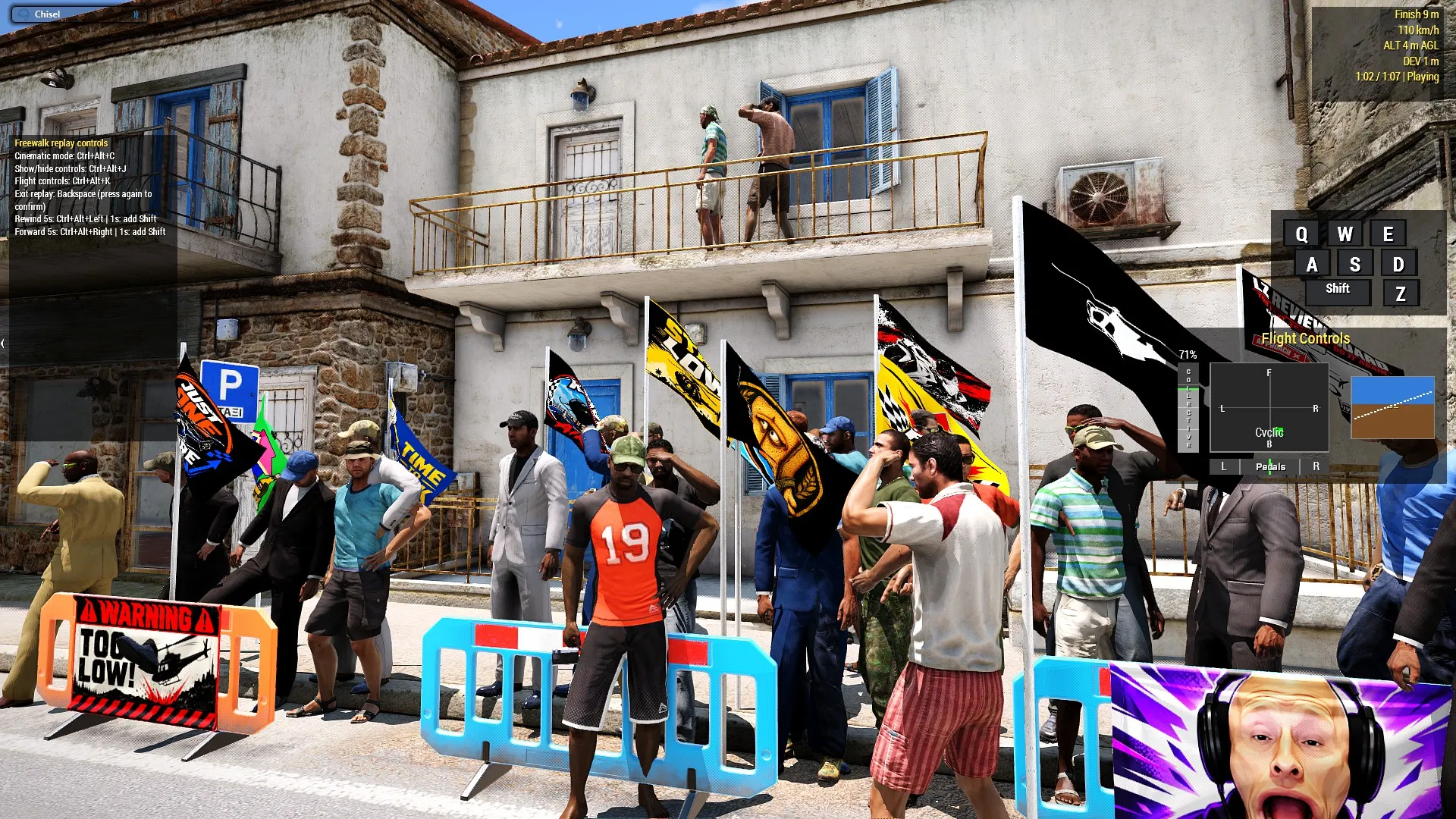 The roadside crowd gathered along the Kavala Heli Time Trial route.
Music stations
The music stations began as three speakers borrowed from a bar and placed beside the road for the first final. They have since acquired a mixer, a DJ, dancers, and considerably more confidence than the pilots. Each station has its own little party gathered around it, with a shuffled playlist that makes one stretch of Kavala sound very different from the next.
The organisers insist that the dancers remain on the safe side of the barriers. The dancers insist on going where the vibe takes them. The station music has its own Music Volume setting if you would rather hear the engine, the crowd, or your own increasingly urgent thoughts.
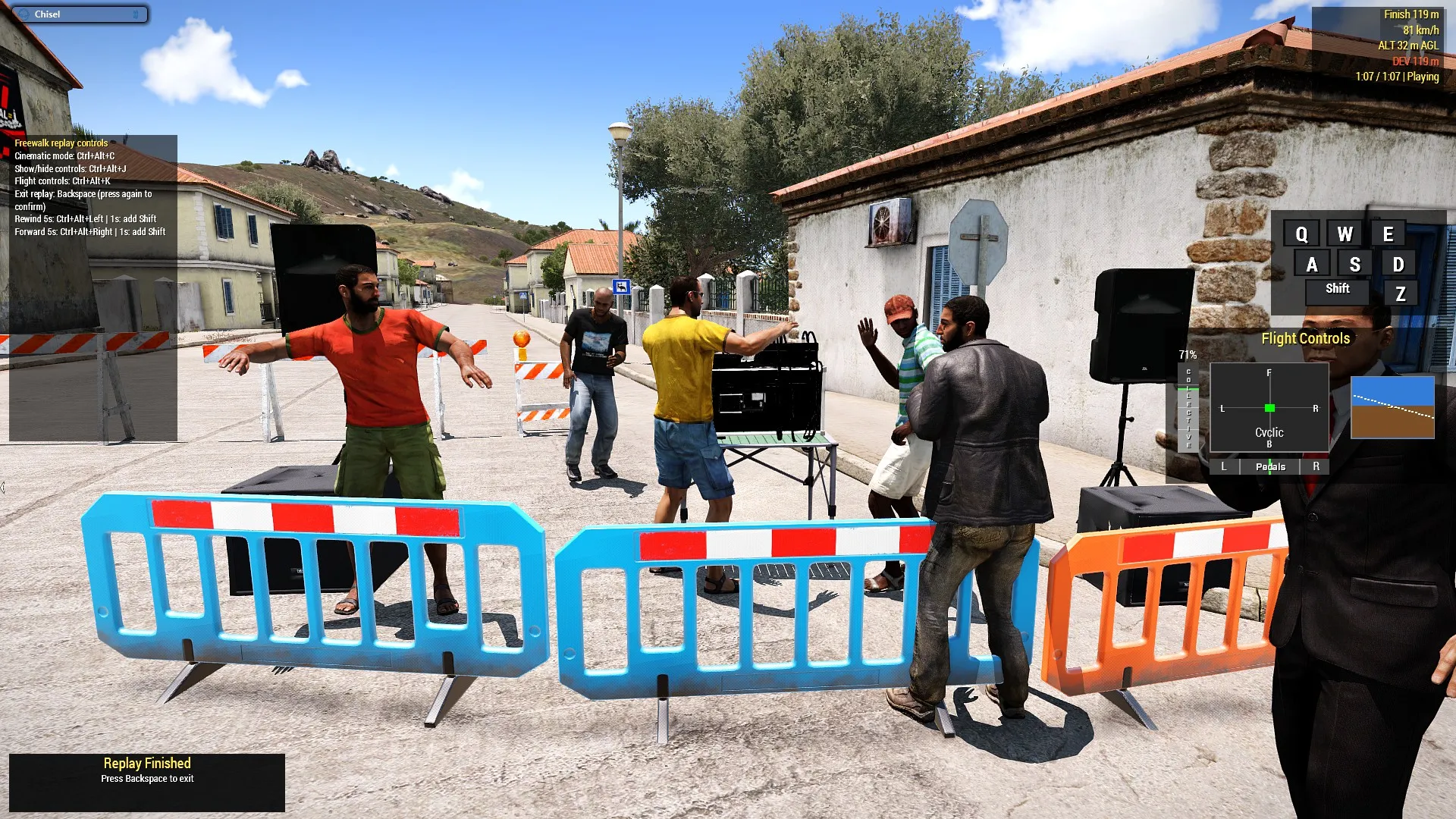 A music station beside the Kavala Heli Time Trial route.
Cameras, towers, and the broadcast
The second running of the race came with official routes, timing equipment, course marshals, medical personnel, designated spectator areas, and rules. It also came with television cameras, because somebody decided that the public deserved to see every close call from several angles. Camera towers now stand beside the route with operators ready to record the passing aircraft. They are part of the scenery, but they are also solid reminders that the organisers have put expensive equipment exactly where a low helicopter might want to be.
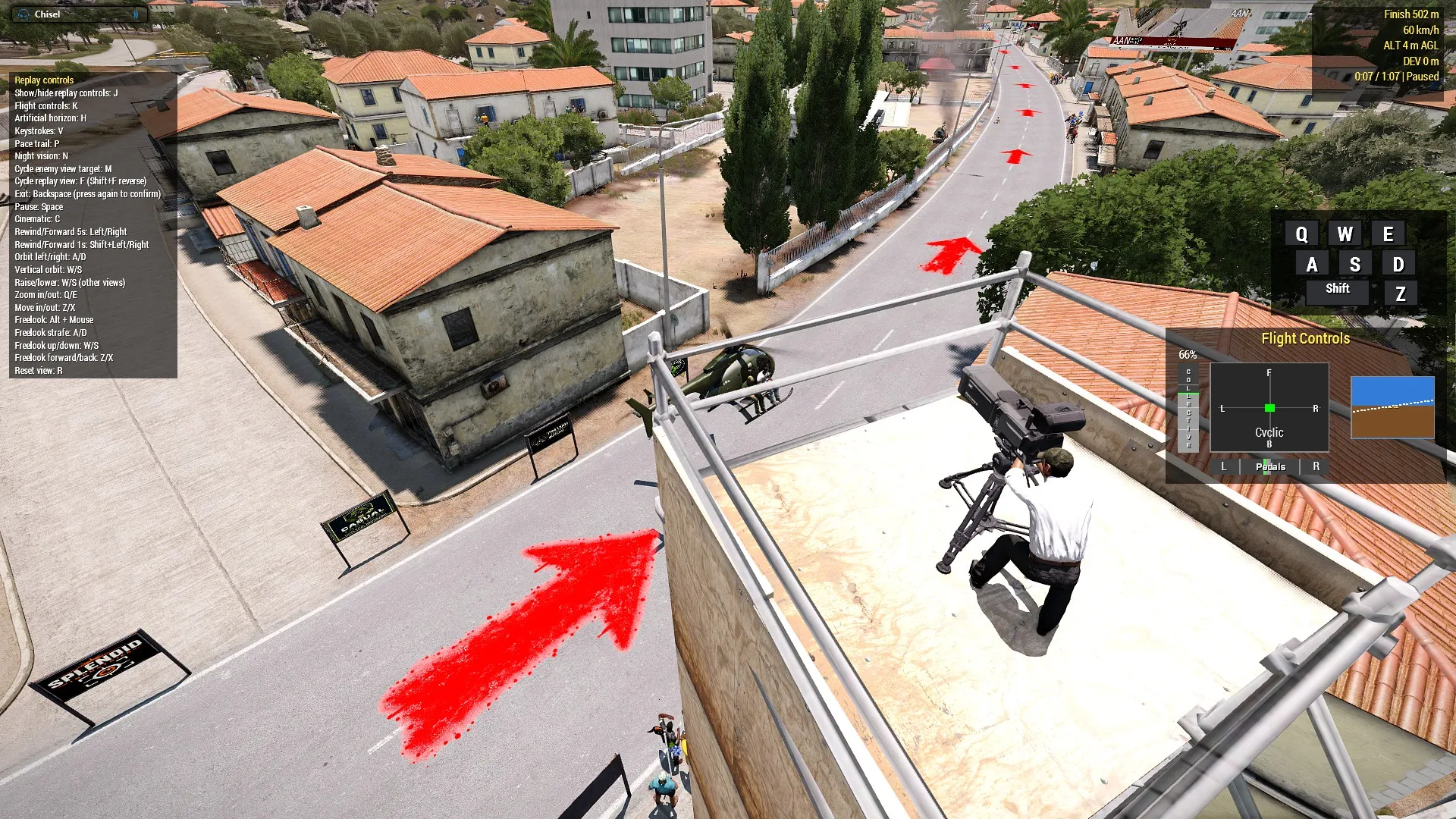 A cameraman on one of the race’s broadcast camera towers.
The Eye in the Sky provides the grand view. It circles high above the route, looking down over the streets and picking up the race from above when the broadcast wants something more impressive than a camera operator standing beside a lamp post. It is not a competitor. It is simply another helicopter being paid to watch you make decisions that will later be described as “bold.”
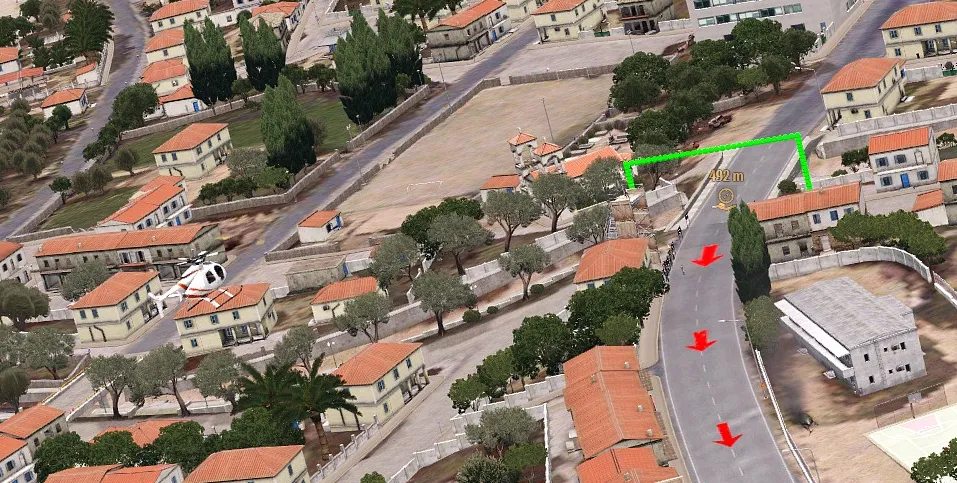 The Eye in the Sky helicopter watching over the race route.
Above even the Eye in the Sky, the blimp drifts around the course. Nobody has produced a convincing explanation for why a blimp is necessary at a helicopter time trial, but it is large, visible, and reassuringly slow. It gives the event a proper aerial-spectacle feeling and proves that the organisers have secured at least one form of aviation that is unlikely to clip a church steeple.
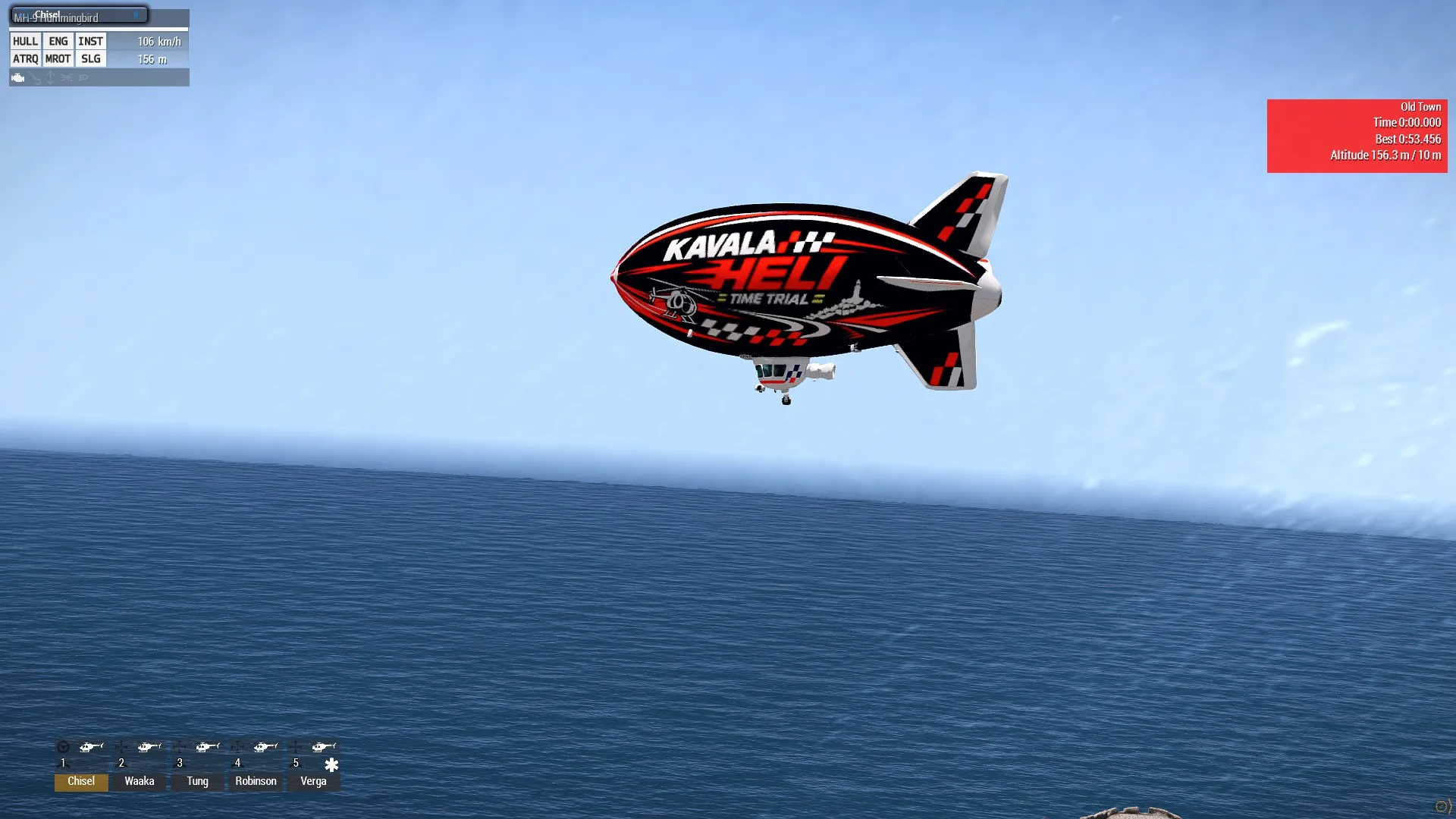 The race blimp drifting above the course.
Billboards and signs
The sponsors have not been shy. Their banners stand at the start and finish, surrounded by rows of flagpoles and flags so nobody can claim not to have noticed who paid for the timing equipment. Sponsor wall signs appear along the route as well, fixed to suitable buildings and walls where passing pilots can admire them for the fraction of a second available between two corrections.
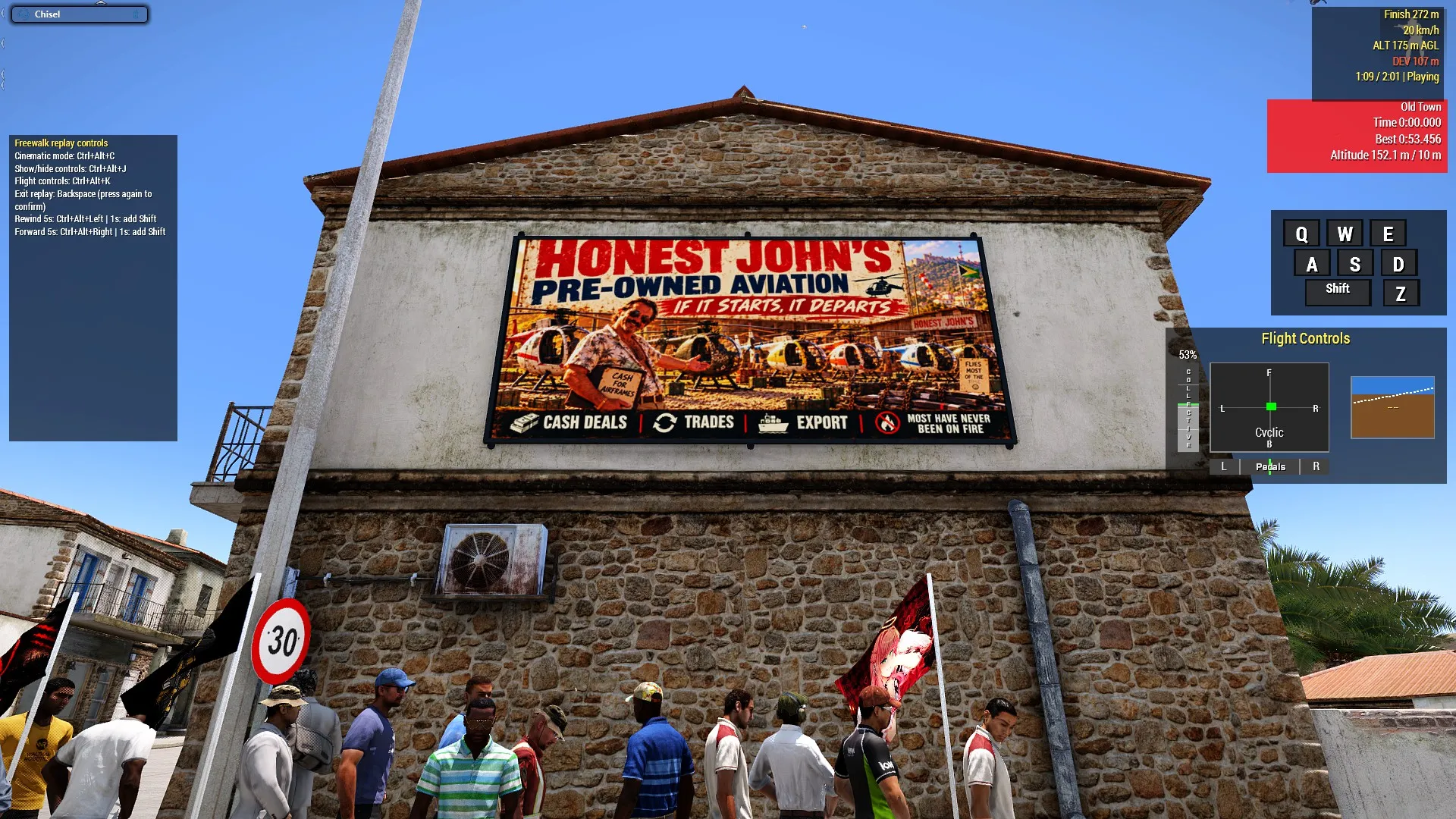 A sponsor billboard at the race course.
The large electronic billboards carry live information, and live feeds of the AAN News Coverage from the broadcast cameras and eye in the sky.
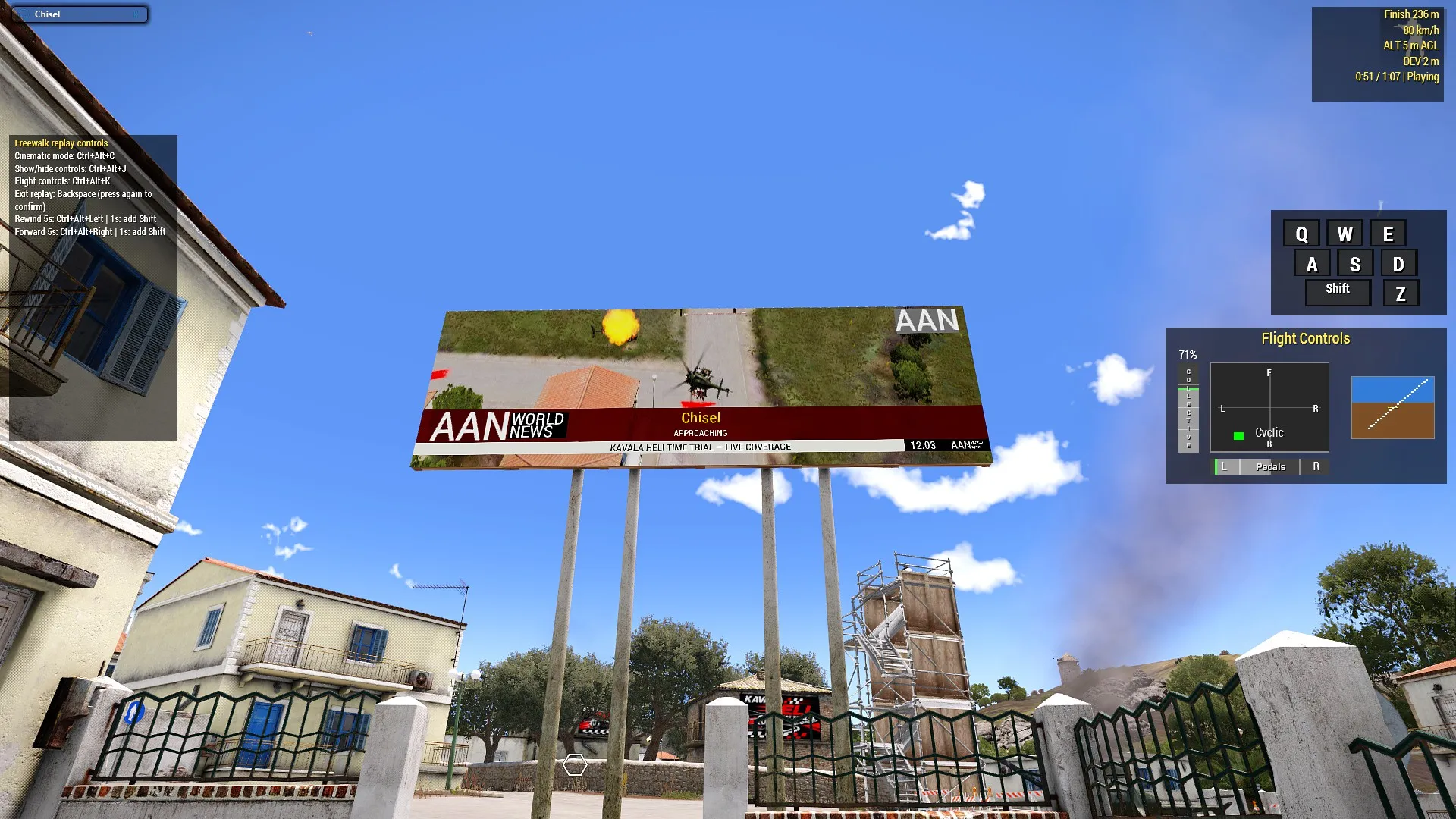 An electronic billboard beside a Time Trial route.
Wrecks, medics, and the finish
The wrecks are part of the event’s history. The unofficial Wreck Rule says that a crashed aircraft is generally left where it comes to rest until the final run is complete, provided there is still a way around it. Some are merely damaged. Some are smouldering. Some have a pilot nearby, staring at the ground and reconsidering the wisdom of entering a race that was drawn on a drinks menu.
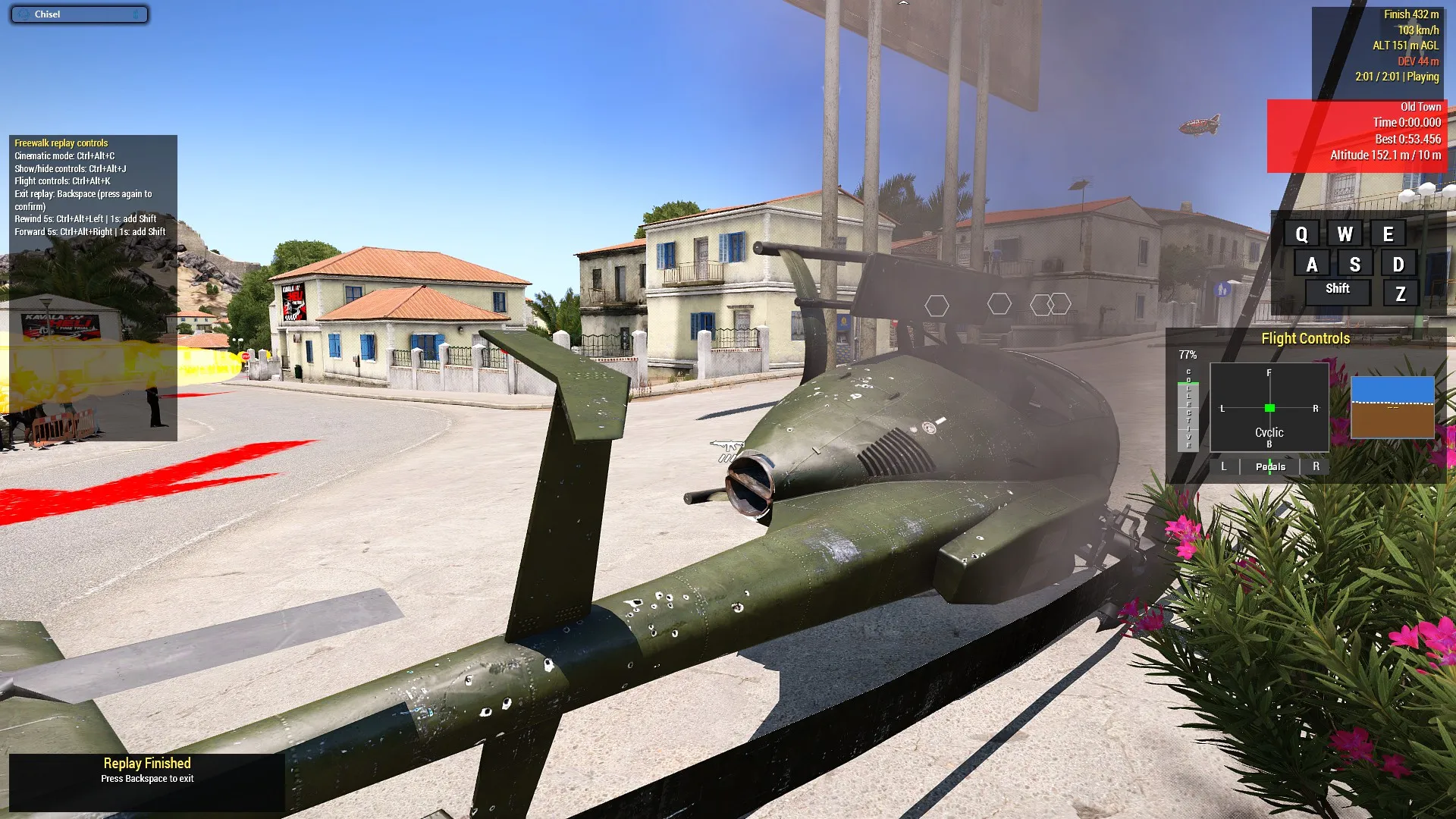 A wreck beside the race route.
The ambulance beyond the finish is not decorative optimism. The organisers may have added designated medical personnel and proper timing equipment at the second running, but they have not forgotten how the first running went. It waits past the finish line, on a road, ready for the sort of ending that makes an excellent story later and a poor result now.
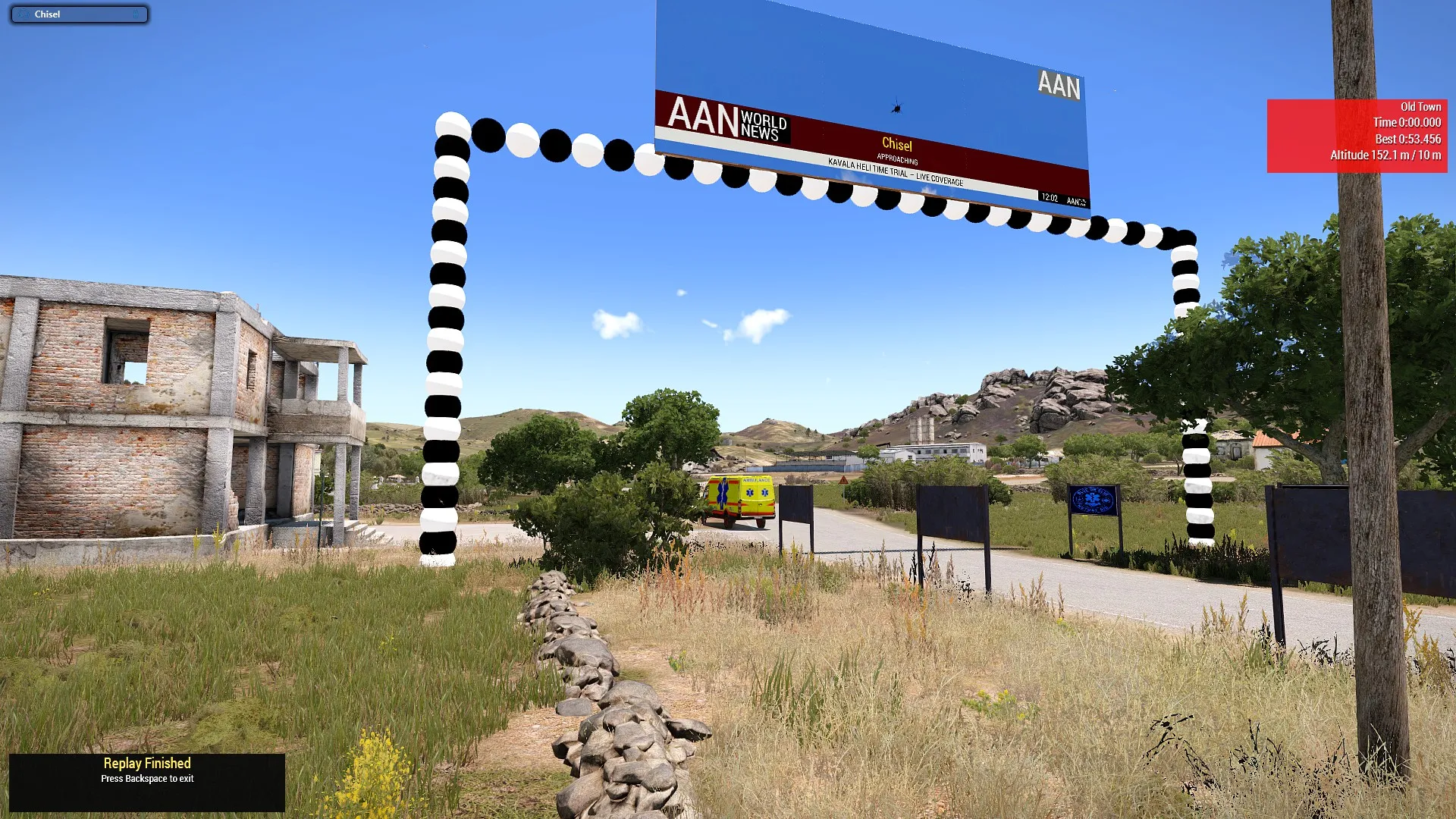 The ambulance waiting beyond the finish line.
Seeing the sights properly
The best way to appreciate the whole production is to watch a replay from outside the cockpit. Use Spectators to see the crowd’s view, AAN News to see the cameras and billboards doing their work, or Free Walk to wander among the flags, signs, music stations, and wrecks while the helicopter passes. The route may have started as a line on a drinks menu, but by the time you reach the finish it has acquired sponsors, television coverage, an ambulance, a blimp, and several hundred people waiting to see whether you can clear the next building.
11. Troubleshooting and FAQ
I want to stop the run
Press End to end the current attempt.
A replay or result does not appear immediately
Wait for the mission to finish processing the attempt. The replay keeps a short post-finish or post-crash tail before the summary is finalized, so the result may take a moment to appear. Avoid repeatedly clicking the same control while the result or replay list is updating.
My saved replays disappeared after reinstalling Arma or changing profile
Race replays are stored in your Arma profile, not in the mission folder. Reinstalling Arma, deleting the profile, or switching profiles can make the local library unavailable. Export important replays as text packages and keep those exports somewhere outside the Arma profile.
Why is Pilot view not reproducing my freelook or TrackIR movement?
Recorded freelook and zoom require the optional CHS Replay Camera addon during the flight and replay. If it was not active while the run was recorded, Pilot view can only provide the normal pilot perspective. During playback, disable live TrackIR or other head-tracking input so it does not override the recorded view.
Does replay work with Advanced Flight Model?
Yes. The mission records the helicopter state and controls that Arma reports, so an Advanced Flight Model run replays its actual behaviour. The collective representation may look different because AFM uses analogue behaviour, but the replay and flight-controls overlay still work.
The mission runs too slowly
Lower Spectators, set Billboard Video to No Video, and reduce or disable Music Volume and Crowd Volume.
When reporting a performance issue, note whether it happens during ordinary flying, near billboard/video scenery, or after repeated attempts.
I am new to Arma helicopter flight. Where should I start?
Use Chisel’s LZ Trainer Free Flight mode first. Practise cyclic, collective, pedals, low-level turns, and controlled landings before attempting the time trial.
12. Report a bug or suggest a feature
Use the mission’s Steam Workshop page to report bugs or suggest improvements. For a bug, include what you were doing, what you expected to happen, what actually happened, whether the issue occurred during ordinary flying or replay, and which mods were loaded. Mention the route, helicopter, Options settings, and replay mode when they are relevant.
Screenshots are useful for visual problems, but replay data is much more useful for flight, scoring, and replay problems. Export the affected replay from Library, preserve the complete text exactly, and publish it as a public GitLab Snippet. Include the snippet link in the Workshop comment so the problem can be reproduced rather than guessed from a description.
Feature suggestions are welcome too. Explain the flying or replay problem the feature would solve, and give an example of how you would expect it to work. Suggestions are easier to evaluate when they are separated from a bug report and include the route or replay context where the need appeared. Have an idea for an interesting route? Draw some lines on the map to sketch it out and send a screenshot.
13. Credits and related missions and mods
Route design: Grumpy Joe — Ebb & Flow. Play Testing: Thanks to Grumpy Joe and Rorchak’sRevenge for their invaluable playtesting and feedback.
For helicopter fundamentals, use Chisel’s LZ Trainer and its Free Flight mode. The LZ Trainer guide contains a detailed explanation of Arma helicopter controls, replay camera controls, and flight-controls overlays that also apply when the same features are enabled here.
Two optional companion addons from the same author extend the mission’s flight and replay tools:
- CHS Flight HUD — provides the live cyclic, collective, pedals, artificial-horizon, and keystroke overlay while flying, in any mission.
- CHS Replay Camera — lets Pilot replay preserve the freelook and zoom you used during the flight, including TrackIR-style head-tracking movement. Disable live TrackIR or other head tracking while watching the replay so it does not override the recorded view.
I would love to see your replays. Export the replay as a .txt file from the mission, then follow the detailed replay-sharing instructions to publish it as a public GitLab Snippet and share the link.